

Day: December 31, 2025

Apple Hints at Significant Announcement for Apple Fitness+ in 2026

Apple has hinted at an exhilarating advancement for its Apple Fitness+ service, teasing “something significant” set to debut in 2026. This announcement was shared through an Instagram Reel on the Apple Fitness+ account, displaying various people perusing a fictional publication titled “Apple Fitness+ Times.” The newspaper boasts several striking headlines that indicate major changes and new content are forthcoming.

### Notable Points from the Teaser

1. **New Year Strategies**: One headline states, “WHAT’S APPLE FITNESS+ PLANNING FOR THE NEW YEAR? Trainers seen filming brand new material.” This suggests that Apple is preparing for new offerings as the new year draws near.

2. **Significant Changes Ahead**: Another headline proclaims, “SOMETHING BIG IS COMING TO APPLE FITNESS+,” indicating that important updates or features are anticipated in 2026.

3. **Launch Countdown**: The statement “THE COUNTDOWN BEGINS. APPLE FITNESS+ 2026 IS ALMOST HERE” underscores the excitement surrounding the forthcoming updates.

4. **Professional Insights**: The teaser also features a headline that notes, “EXCLUSIVE: 2026 PLANS STILL UNDER WRAPS – FOR NOW. Experts forecast January as a month to watch,” suggesting that additional details may emerge soon.

The teaser corresponds with recent findings indicating that Apple Fitness+ is undergoing an evaluation phase, as mentioned in a Bloomberg article. Nevertheless, the company seems dedicated to improving its service, underscored by its recent expansion into 28 new markets, aided by AI-driven voice dubbing.

### Expected Developments

While details are still limited, the teaser implies that the new content may tie in with New Year’s fitness goals, a period when many people aim to enhance their health and wellness. Furthermore, Apple is anticipated to roll out an AI-driven health service in 2026, although it remains uncertain if this will correlate with the imminent Fitness+ updates.

As the countdown to 2026 commences, fitness aficionados and Apple users are excited to discover what innovations and improvements Apple Fitness+ will present. The teaser has ignited interest and speculation within the community, encouraging users to express their opinions on prospective new features in the comments section of the post.

In summary, Apple Fitness+ is set for a thrilling transformation in 2026, featuring new content and functionalities expected to enrich the user experience. As the new year approaches, all attention will be on Apple to reveal how it intends to enhance its fitness service.

Read More

Reasons Behind Walmart’s Budget-Friendly Onn TVs

Samsung is regarded as the top major TV manufacturer concerning customer satisfaction, its price reflects the quality offered.

If you’re thinking about buying an Onn TV due to its appealing price, it’s wise to understand precisely what to anticipate from the product. It’s tough to resist a great deal. Nevertheless, you wouldn’t want to be dissatisfied with the television, leading you to spend even more on a different brand.

The advantages of buying an Onn TV

How to Rapidly Secure Image Files with a Password on a Mac

### How to Secure Screenshots with a Password on macOS

In the current digital era, safeguarding sensitive information is essential. If you have screenshots that include private data such as tax documents or banking details on your Mac, it is vital to protect them. Although macOS Preview does not offer file-level password protection, there are efficient ways to encrypt your images without relying on third-party applications.

#### Method 1: Utilizing Disk Utility

This approach involves generating an encrypted virtual disk through Disk Utility. While it might seem excessive for a handful of files, it ensures strong security.

1. **Collect Your Files**: Arrange the screenshots or documents you wish to safeguard in a single folder.
2. **Launch Disk Utility**: Go to Finder > Applications > Disk Utility.
3. **Generate a New Image**: Select File > New Image > Image from Folder, then pick the folder that houses your files.
4. **Configure Encryption**: Name your virtual disk, designate a location, and choose the encryption level (up to AES-256). Select the Read/Write format for future edits.
5. **Mount and Dismount**: Keep in mind that you will need to mount and dismount this virtual disk every time you want to access the files.

Though this method provides strong encryption, it can be inconvenient for regular use.

#### Method 2: Quick Access with Preview

A simpler approach is to use the Preview application to convert your images into password-protected PDFs.

1. **Open with Preview**: Right-click the image, hover over “Open With,” and choose Preview.
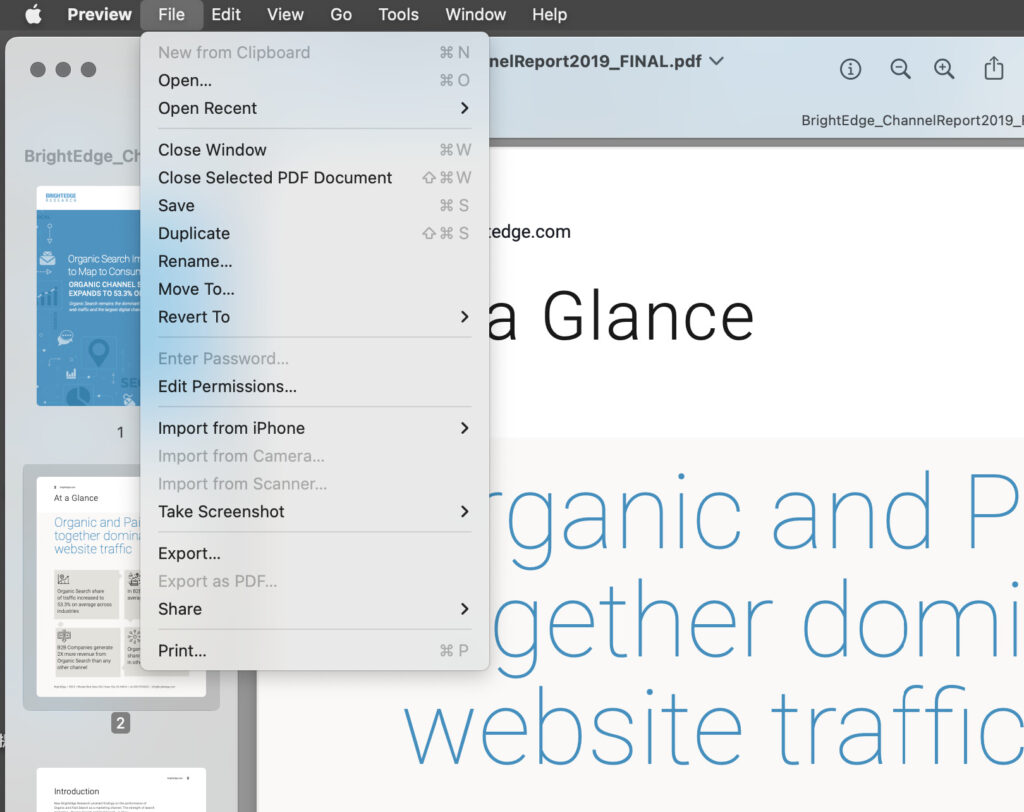
2. **Export as PDF**: Navigate to File > Export as PDF.
3. **Set Permissions**: Name your file, select a location, and click on “More Details” > “Permissions” to reach the password settings.
4. **Implement Password**: Check the “Require Password To Open Document” box and input a password. An owner password must also be set, which can be the same as the user password.
5. **Save the PDF**: Click “Apply” and then “Save.” You can then remove the original unprotected file.

When you try to open the newly created PDF, it will prompt you for the password. This method employs AES-128 encryption, which is adequate for most users against everyday threats.

### Conclusion

Both methods enable you to effectively secure sensitive screenshots on your Mac. While Disk Utility offers enhanced encryption, using Preview is faster and simpler for routine tasks. By following these instructions, you can ensure that your sensitive information stays safe from unauthorized access.

Read More