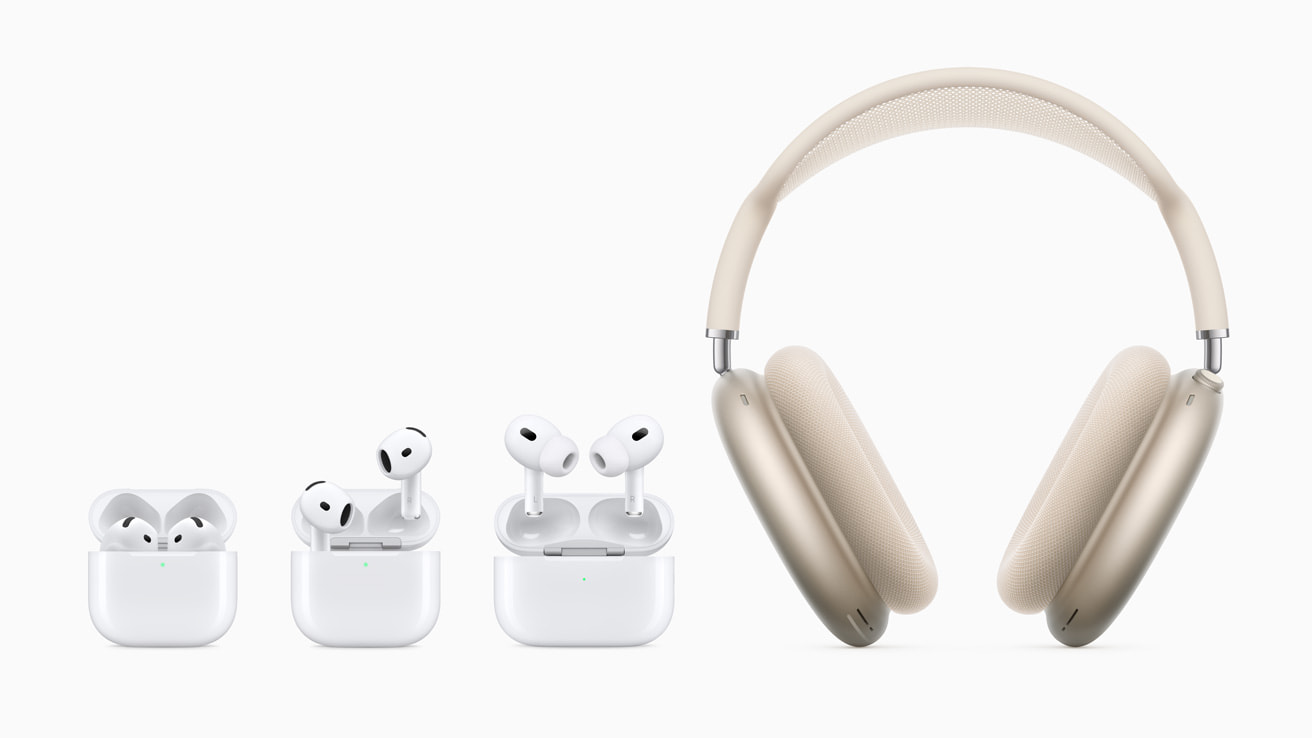
# Fresh Capabilities of AirPods: Upgrades from iOS 18 and iOS 26
Did you recently unwrap some brand new [AirPods 4](https://geni.us/hLKLXOf) or [AirPods Pro](https://geni.us/ymvlA) due to unbeatable Black Friday and Cyber Monday offers? If yes, there’s plenty of information you should be aware of.
In the past couple of years, AirPods have improved notably thanks to software updates from Apple. Here’s a summary of new features you ought to experience that were rolled out with iOS 18 and iOS 26.
## New AirPods Features: Head Gestures
*Available on AirPods Pro 2, AirPods Pro 3, AirPods 4*
With the launch of iOS 18, users of AirPods Pro 2, AirPods Pro 3, and AirPods 4 can engage with Siri and respond to incoming notifications by nodding their heads up or down.
– Accept a call or respond to notifications and messages: Nod your head up and down.
– Decline a call or dismiss notifications and messages: Shake your head side to side.
To utilize head gestures for interacting with Siri, make sure Announce Calls and Announce Notifications are activated. Open the Settings app, select “Notifications,” and enable the “Announce Notifications” option.
### Managing Head Gestures
1. With your AirPods connected to your iPhone, open the Settings app and select your AirPods at the top.
2. Scroll down and select “Head Gestures.”
3. Toggle on the feature and select which gesture corresponds to “Accept, Reply” and “Decline, Dismiss.”
## Voice Isolation
*Available on AirPods Pro 2, AirPods Pro 3, AirPods 4*
Voice Isolation is a functionality that assists in ensuring the caller’s voice is captured in noisy or windy settings. Utilizing machine learning and the H2 chip, this feature isolates and amplifies voice clarity while minimizing extraneous background noise.
### Enabling Voice Isolation
1. During a call, swipe down from the top of your screen to open Control Center.
2. Tap the “Controls” button at the top of the screen.
3. Tap on “Voice Isolation.”
## Gaming Improvements
*Available on AirPods 3, AirPods 4, all AirPods Pro, and AirPods Max*
iOS 18 introduced Personalized Spatial Audio with dynamic head tracking to enhance gaming. Access the Settings app, go to your AirPods settings, and scroll down to “Personalized Spatial Audio” to configure it.
This feature includes a Face ID-style scan of your ears to tailor the Spatial Audio experience and offers improved voice quality for gaming conversations.
## Custom Adaptive Audio
*Available on all AirPods Pro and AirPods 4 with Active Noise Cancellation*
iOS 18 upgraded the Adaptive Audio feature, which integrates Active Noise Cancellation and Transparency mode according to your surroundings.
### Customizing Adaptive Audio
1. With your AirPods connected to your iPhone, open the Settings app and select your AirPods at the top.
2. Scroll down and select “Adaptive Audio.”
3. Adjust the slider left for “Less Noise” or right for “More Noise.”
## Hearing Health
*Available on AirPods Pro 2 and AirPods Pro 3*
Apple unveiled hearing health features that enable users to conduct a hearing test with their AirPods Pro and utilize them as a hearing aid for mild to moderate hearing difficulties.
## Live Translation
*Available on AirPods Pro 2, AirPods Pro 3, and AirPods 4 with Active Noise Cancellation*
Live Translation enables users to translate face-to-face discussions in real-time.
### Enabling Live Translation
– Open the Translate app on your iPhone.
– Press and hold the stem on both AirPods.
– Say, “Siri, start Live Translation.”
## Sleep Detection
*Available on AirPods Pro 2, AirPods Pro 3, and AirPods 4*
This feature halts media playback when your AirPods sense that you’ve drifted off to sleep.
### Enabling Sleep Detection
1. Open the Settings app.
2. Select your AirPods at the top.
3. Toggle on: “Pause Media When Falling Asleep.”
## Camera Remote
*Available on AirPods Pro 2, AirPods Pro 3, and AirPods 4*
With iOS 26, your AirPods can be used to capture a photo with your iPhone.
### Setting Up Camera Remote
1. Open the Settings app.
2. Select your AirPods at the top.
3. Scroll down and select “Camera Remote.”
4. Choose from Off, Press Once, or Press and Hold.
## “Keep Audio with Headphones”
iOS 26 brings in a “Keep Audio with Headphones” option to stop your AirPods audio from being disrupted by other Bluetooth speakers.
### Enabling Keep Audio
