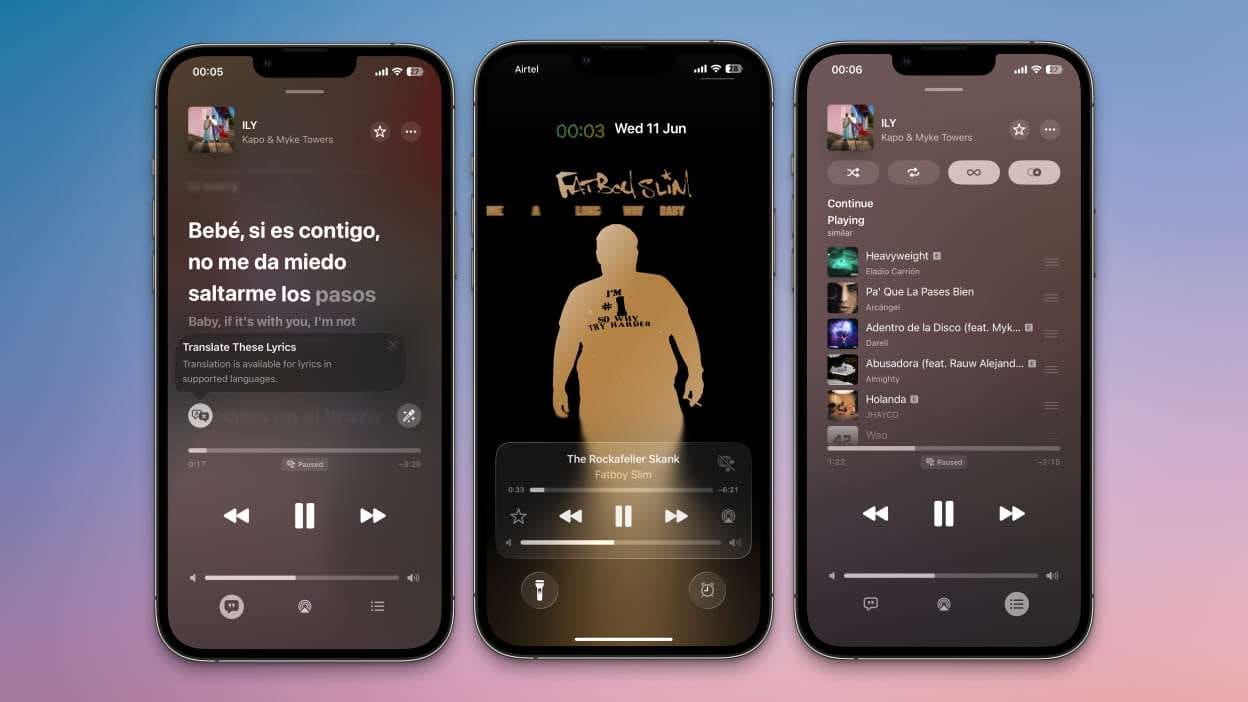
# Personalizing Your iPhone’s Liquid Glass Style in iOS 26
iOS 26 debuted in the autumn, and with the following updates 26.1 and 26.2, it brought new features for customizing the groundbreaking Liquid Glass design. As new users transition to iOS 26, here’s a summary of two efficient methods to personalize your iPhone’s Liquid Glass style.
## #1: Select Your Desired Liquid Glass Appearance
Liquid Glass comes in two primary variants in iOS 26:
– **Clear**
– **Tinted**
You can evaluate these choices by going to Settings ⇾ Display & Brightness ⇾ Liquid Glass.
Both styles possess several similarities, but the Clear variant showcases more transparent UI elements, while the Tinted option boosts opacity and improves contrast. If you’re unsure which style fits you best, experiment with each for a time before deciding. The ‘Clear’ look provides a contemporary vibe, whereas ‘Tinted’ preserves a more traditional iOS 18 feel.
## #2: Personalize Your Lock Screen Clock
The Lock Screen is among the most commonly seen aspects of iOS. In iOS 26, you can alter the appearance of the Lock Screen clock using Liquid Glass.
To start, long-press on your wallpaper and choose ‘Customize.’ Tap on the clock to select the ‘Glass’ design option. When ‘Glass’ is chosen, a slider appears, enabling you to adjust the clock’s transparency to your preference.
Furthermore, you can change the clock’s dimensions. By dragging the bottom-right corner of the clock, you can increase its size on the display.
What are your favorite Liquid Glass styles in iOS 26? Share your thoughts in the comments.
