### How to Secure Screenshots with a Password on macOS
In the current digital era, safeguarding sensitive information is essential. If you have screenshots that include private data such as tax documents or banking details on your Mac, it is vital to protect them. Although macOS Preview does not offer file-level password protection, there are efficient ways to encrypt your images without relying on third-party applications.
#### Method 1: Utilizing Disk Utility
This approach involves generating an encrypted virtual disk through Disk Utility. While it might seem excessive for a handful of files, it ensures strong security.
1. **Collect Your Files**: Arrange the screenshots or documents you wish to safeguard in a single folder.
2. **Launch Disk Utility**: Go to Finder > Applications > Disk Utility.
3. **Generate a New Image**: Select File > New Image > Image from Folder, then pick the folder that houses your files.
4. **Configure Encryption**: Name your virtual disk, designate a location, and choose the encryption level (up to AES-256). Select the Read/Write format for future edits.
5. **Mount and Dismount**: Keep in mind that you will need to mount and dismount this virtual disk every time you want to access the files.
Though this method provides strong encryption, it can be inconvenient for regular use.
#### Method 2: Quick Access with Preview
A simpler approach is to use the Preview application to convert your images into password-protected PDFs.
1. **Open with Preview**: Right-click the image, hover over “Open With,” and choose Preview.
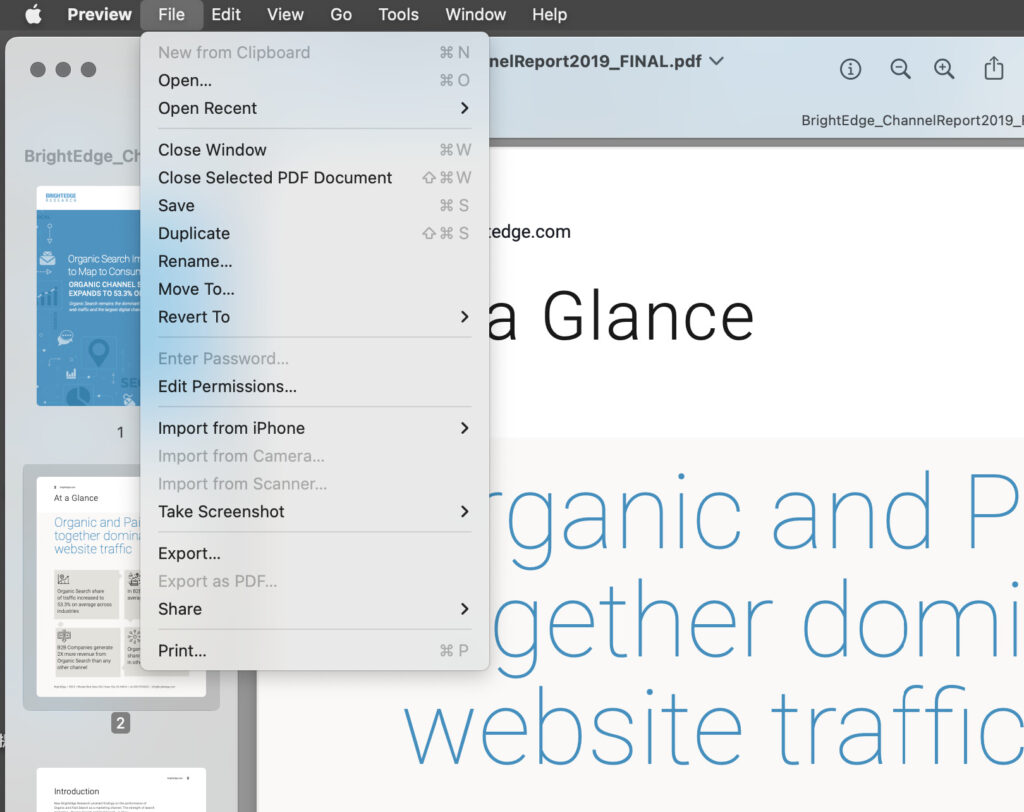
2. **Export as PDF**: Navigate to File > Export as PDF.
3. **Set Permissions**: Name your file, select a location, and click on “More Details” > “Permissions” to reach the password settings.
4. **Implement Password**: Check the “Require Password To Open Document” box and input a password. An owner password must also be set, which can be the same as the user password.
5. **Save the PDF**: Click “Apply” and then “Save.” You can then remove the original unprotected file.
When you try to open the newly created PDF, it will prompt you for the password. This method employs AES-128 encryption, which is adequate for most users against everyday threats.
### Conclusion
Both methods enable you to effectively secure sensitive screenshots on your Mac. While Disk Utility offers enhanced encryption, using Preview is faster and simpler for routine tasks. By following these instructions, you can ensure that your sensitive information stays safe from unauthorized access.
