

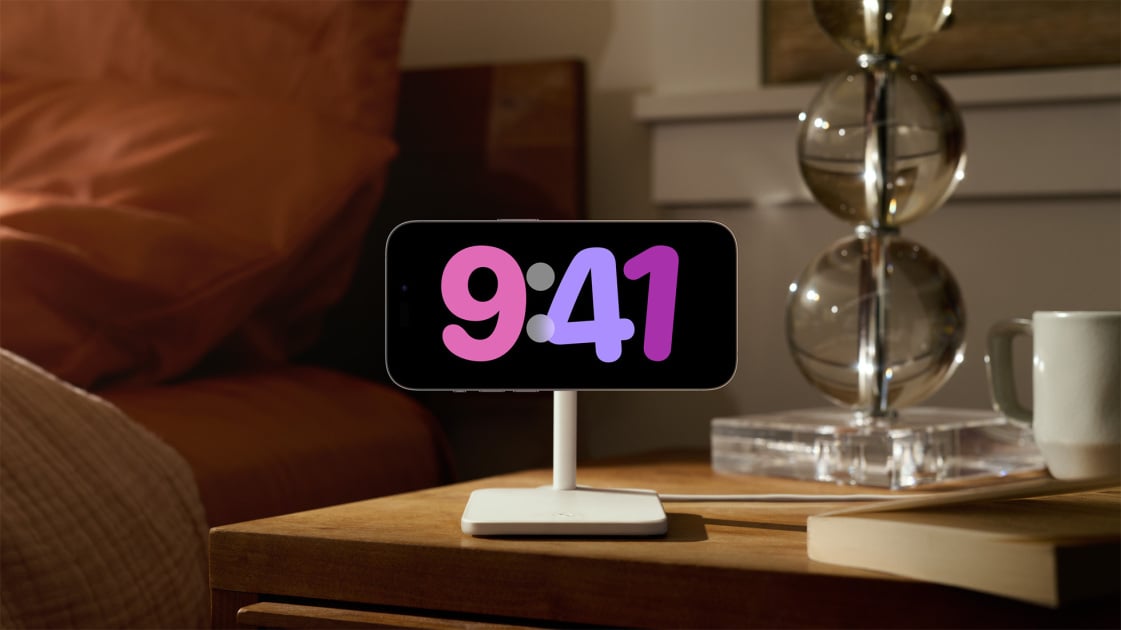
A personalized desk clock, sunrise alarm, weather updates, and much more, all with a fully charged battery when you get up.
One of the standout features of the Google Pixel Tablet is its transformation into a clock, weather station, Google Photos slideshow, and even a smart home dashboard while it’s docked in its charging stand. This capability was introduced to all Pixels a while back, but it turns out that Pixels offer even more impressive alarm clock-like features than I first thought.
The Google Pixel 10 series enhances this functionality with its integrated Pixelsnap magnets, which can easily attach to a compatible wireless charger, preventing your Pixel from sliding off the charger during the night. While a wireless charger isn’t necessary to access all the top alarm clock features, they typically perform best because the optimal Pixelsnap chargers usually position the phone at a viewing angle that’s convenient from your pillow.
Let’s start by activating the convenient “screen saver” feature on your Pixel while it charges.
Reviving the 90’s screen saver
I laughed out loud the first time Google reintroduced the screen saver feature in Android 7, as it reminded me of watching flying toasters glide across the screen on my childhood Windows 95 PC. However, modern screen savers serve a purpose beyond just preventing screen burn-in; they have a much more practical use.
They are created to provide glanceable information while your phone is charging and can be quite useful on your nightstand. I’ve shared some images of the default options above, but I find that I prefer the straightforward “Everyday Clock” option for nighttime use. Note that you can place the phone in either landscape or portrait mode and your Pixel will adjust the display accordingly.
Here’s how to activate the Pixel screen saver:
1.) Access system settings. You can do this from the app drawer on the home screen or by swiping down on your status bar twice and tapping the settings gear at the bottom.
2.) Go to Display & Touch.
3.) Select Screen saver.
4.) Toggle the switch next to Use screen saver.
5.) Tap When to show.
6.) Choose Restrict to wireless charging if you want the screen saver to only show while wirelessly charging the phone. This is ideal if you’re using it as an alarm clock.
7.) Return to the main screen saver settings and toggle Low light mode if you want the screen saver to activate at night when the room is dim.
Once the screen saver is activated, it’s time to personalize it! Google currently provides 5 distinct screen saver options: Everyday Clock (digital), Google Photos, Home Controls, Pilot Bold Clock (analog), and Weather.
All these options can be customized, including the theme to keep everything darker at night. After you have chosen the screen saver style you like, click the Customize button on the selected screen saver’s tile. Then, tap Theme at the bottom. I recommend selecting the Auto theme, as it will automatically alternate between light and dark modes based on your phone’s settings.
Now, when you place your Google Pixel phone on a wireless charging dock (or wired, if that’s your choice), it will automatically show the screen saver when the screen goes to sleep. If you encounter issues with the screen saver, lock your phone, then turn on the screen while still locked before plugging it in or docking it.
This will help ensure the screen saver activates when the screen goes to sleep again. This shouldn’t occur often, but I have noticed it can be a bit glitchy at times, and this method has consistently worked for me.
Now onto the “alarm” aspect
Now that your Pixel displays a clock, the weather, or something else while docked, what about the “alarm” functionality? It turns out, Pixel software supports a myriad of fantastic alarm features, including playing white noise or music at bedtime, gradually waking you up with a sunrise alarm, and even presenting the weather forecast for the day when the alarm goes off.
This type of functionality is not only enjoyable, but it’s also the most effective way to gently wake up and feel refreshed in the morning in a more natural manner. You can enable bedtime features, wake-up functions, or both. Here’s how to activate everything:
1.) Open the clock app.
2.) Select the Bedtime tab at the bottom.
3.) We’ll begin by enabling bedtime functions. In the Schedule section, tap Bedtime.
4.) Set your desired bedtime, any days you wish to choose (the entire week is selected by default), and any other preferences you have. Hit Next when satisfied.
5.) Now, tap the Wake-up section and choose the time and days you want to be awakened.
6.) I personally prefer the Sunrise alarm option, which will gradually illuminate the screen and slowly raise the alarm’s volume over several minutes.