

Place convenience at the forefront.
In the current rapid-paced environment, convenience reigns supreme. Whether it’s via technology, services, or everyday items, the craving for convenience has reached unprecedented levels. This article delves into the significance of placing convenience as a priority and how it can be accomplished in various life areas.
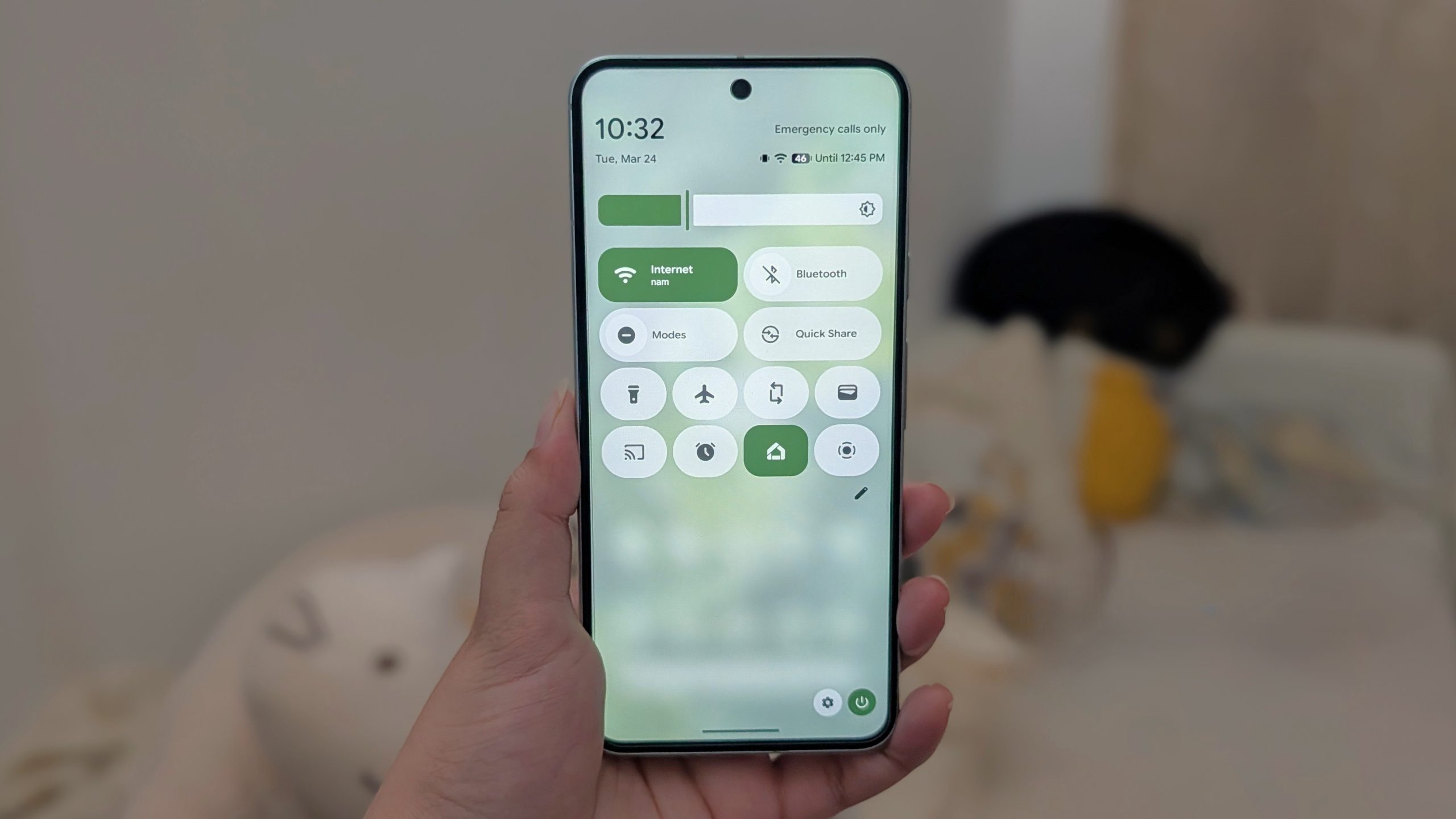
The quick settings are impressively organized on Android 16, particularly on devices using stock Android, such as the Pixel 10. You have the option to add or remove tiles, rearrange them, incorporate third-party tiles, and even adjust their sizes. The basic version comes with a handful of standard tiles right out of the box. Yet, there are numerous essential quick settings tiles that are absent from the default settings.
This is why, when I initially set up a phone, I prefer to add at least six of the most essential tiles to the quick settings right away. Some of these are rather unexpected, prompting the question of why Google hasn’t included these tiles in the quick menu from the start?
Here are my top six quick settings tiles that I consider crucial, in addition to the essentials like Wi-Fi, Bluetooth, and Quick Share.
Location tile
It may come as a surprise, but Google does not include the location tile in the quick settings menu by default. Given that this is arguably the most frequently used setting, I find it baffling that it isn’t automatically included on devices like the Pixel 10 straight out of the box.
Keeping your GPS activated can significantly drain your battery, and there are also privacy considerations to take into account. Therefore, the location tile should be the first one you add to the initial page of your quick settings.
Adding it is fairly straightforward. Keep in mind that the same steps apply for virtually any other tile you wish to add.
All you need to do is swipe down from the top of the screen twice. Once the full quick settings menu is visible, click on the pencil icon to modify tiles. Tiles are categorized, so you’ll need to scroll down to the privacy section to locate and add the location tile.
Hotspot tile
You may have a secondary device, such as a tablet. Or if you’re like me, you enjoy utilizing your mobile data plan on your laptop, especially while roaming. At times, friends might require you to share your mobile data. These are just a few of the compelling reasons why the hotspot tile is crucial.
You can find the hotspot tile