

Introduction:
DocuSign has integrated with Salesforce to streamline the process of creating, sending, and tracking documents for signature. This integration allows the inclusion of both static and dynamic data from Salesforce CRM. Let’s explore how to link Salesforce fields within a document.
Check out the initial steps to set up DocuSign in Salesforce
DocuSign Merge Field
Merge fields serve as DocuSign custom tags that are linked with Salesforce objects, both custom or standard. When these tags with merge field settings are included in a document, Salesforce data populates them. Besides importing data from Salesforce, merge fields allow data updates in Salesforce when a signer modifies information.
New Template with Merge Field
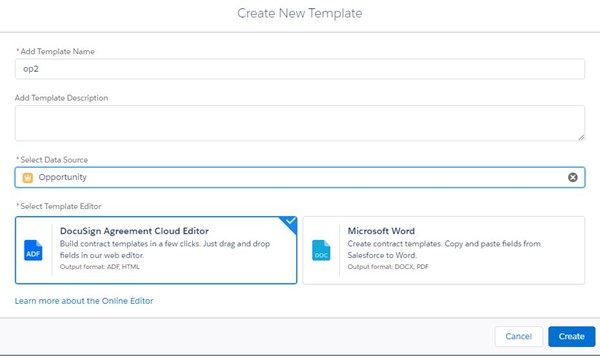
We’re using the Opportunity object here:
- Create a template using Opportunity as your primary object
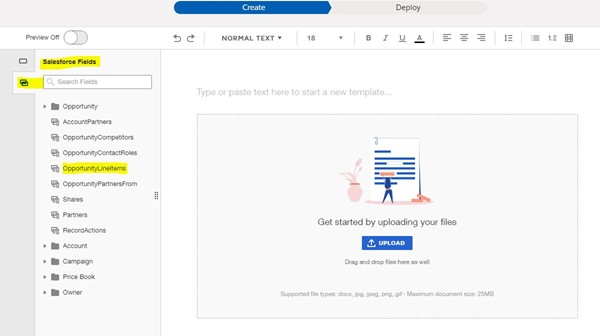
- Select Salesforce Fields
- Select OpportunityLineItems
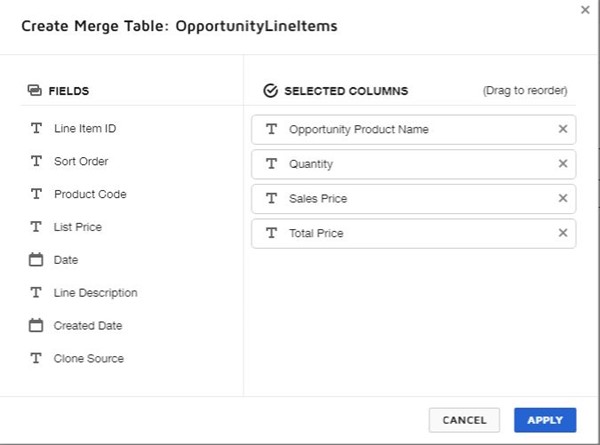
- Select the fields to merge into your document; a table is automatically created
We used the following fields:
- Opportunity product name
- Sales price
- Total price
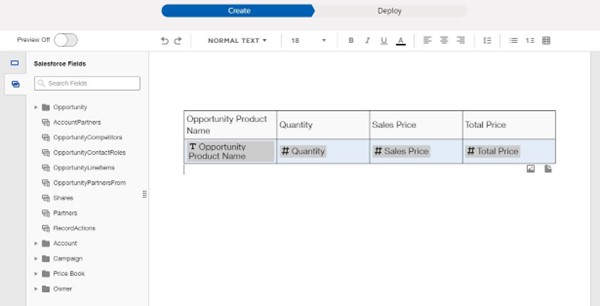
- The table is automatically created.
After making these merge field changes, you can proceed with Quick send and write back. Configuration is optional.</p