author

The MacBook Neo: An Possible Substitute for Chromebooks

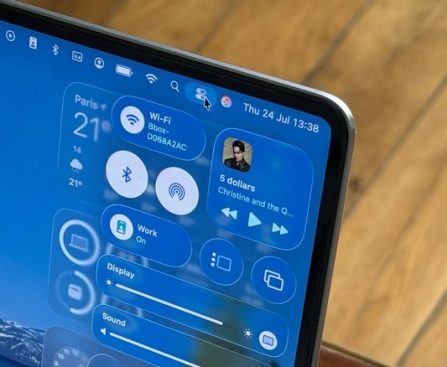
For many years, Chromebooks have been the leading choice in the budget laptop category. Nevertheless, with the introduction of the MacBook Neo, Apple establishes a new standard for computers priced below $599, offering exceptional built quality, a high-performance processor, and several additional features such as a quality webcam and a complete operating system, unlike Chromebooks which operate solely with Google Chrome. While budget shoppers looking for a $150 option may not be swayed by the MacBook Neo, those inclined to invest around $500 may find it challenging to resist upgrading to a Mac, since even pricier Chromebooks don’t compare to Apple’s design.

For instance, a Samsung Galaxy Chromebook may provide an aluminum finish, or you might opt for a 2-in-1 model from Lenovo or Acer, enabling you to use your Chromebook as a tablet as well. However, these options could exceed the $600 threshold, risk delivering subpar performance, lackluster finishes, or potentially come with a poor webcam. Additionally, a more significant distinction between a MacBook and a Chromebook is the operating systems: macOS versus ChromeOS.

Even if the MacBook Neo didn’t boast aesthetic appeal, it would still run macOS. Chromebooks are designed primarily for online use, relying heavily on cloud services like Google Docs. Thus, if you need to work offline, they won’t perform as effectively as a comprehensive operating system like macOS. Moreover, the range of apps on ChromeOS is more restricted. For instance, Adobe Photoshop or advanced editing tools aren’t as readily accessible compared to their availability on macOS. Initial reviews suggest that the MacBook Neo performs admirably in photo and video editing tasks, surpassing what most Chromebooks can handle.

Apple also claims that for local AI tasks and web browsing, the MacBook Neo’s A18 Pro vastly outperforms the latest Intel Core Ultra 5, which is a much better processor than what most Chromebooks possess. Given that Apple manages both the hardware and software for its MacBook Neo, it’s evident why this laptop delivers superior performance relative to Chromebooks and other Windows laptops in a similar price bracket.

Naturally, although shoppers can find certain Chromebook models offering up to 16GB of RAM, superior OLED displays, and additional features, the price can reach a point where purchasing a refurbished MacBook Air or an M2 or M3 model may be a more sensible option than acquiring these ChromeOS devices.

What makes the MacBook Neo particularly appealing is Apple’s focus on the educational sector, a realm that Chromebooks have previously dominated. With a $499 educational price point, students receive a device featuring an aluminum finish, quality keyboards and trackpads (though it lacks the Force Touch found in other Apple MacBooks), a powerful processor that is even more capable than the M1, a decent webcam, and complete macOS compatibility. For an additional $100, users can also upgrade to 512GB of storage instead of the standard 256GB, along with Touch ID support.

Early reviews indicate that the speakers are surprisingly impressive, even though they are side-firing. The 13-inch LCD display from Apple has also received positive feedback, despite not supporting P3 Gamut, which would enhance color vibrancy. Nevertheless, the general consensus appears to be that if you are searching for a laptop to accompany you in the coming years—whether you are starting college or seeking a reliable daily device—the MacBook Neo is the top choice for non-technical users who prefer a laptop that won’t underperform after just a couple of years.

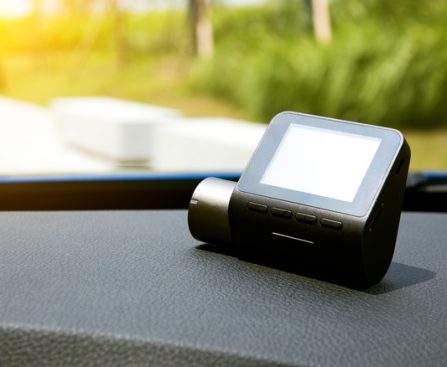
How to Transform Your Old Dash Cam Into a Webcam

convert an outdated smartphone into a functional webcam. Naturally, with everyone relying on smartphones these days, there’s nearly no necessity for webcams at all. You can conduct video calls, participate in conference calls, or attend meetings, all through your phone. However, if you prefer to sit at your desk and utilize a more conventional setup without spending on a dedicated webcam, there’s an alternative trick you can execute. You might be able to utilize an older dash cam and configure it similarly.

It’s essential to understand that this won’t function with every dash cam available. This is due to the requirement for USB connectivity between the camera and the computer. What you need is a camera that operates on UVC (USB video class), the protocol that enables cameras to interact with a computer or different devices, particularly during video and audio streaming.

The straightforward method to verify is to connect your dash cam to your computer via USB and observe if a mode-select screen appears. If such a screen does not show up, just confirm if the computer acknowledges the camera. Most operating systems, including Windows, Linux, and macOS, should detect a UVC camera and allow you to select and utilize it as such. If the dash cam is recognized as a mass storage device or USB storage, it likely does not support UVC. You can also consult the original user manual or documentation for your dash cam.

Even when your computer detects it, the dash cam may not function

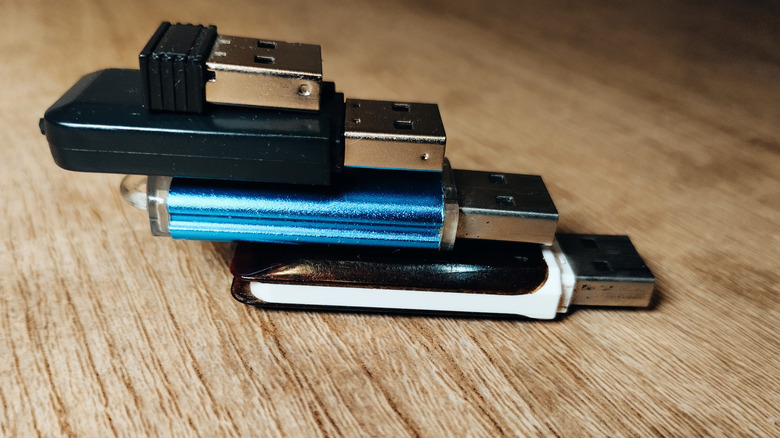
Comparison of Mini USB Drives and Thumb Drives: Which One is Superior?

would keep a mini drive connected to your laptop even while putting it in your backpack or purse, for instance. Are they superior for storage, though? Absolutely, greater capacities, along with typically much higher transfer speeds, enhance their convenience significantly.

Significantly more compact than the smaller that you’re familiar with

What mainly distinguishes mini drives is their considerably smaller size. A standard thumb drive is designed to be retractable and portable, but they come with certain drawbacks. They tend to have slower read and write speeds, contingent on the USB version, and less storage capacity, making them suitable for quickly transferring files or backing up minor individual files. Moving a school report to a flash drive and taking it to class to upload to a school computer is a

Amazon Customers Commend $50 Mouse as a Remedy for Wrist Discomfort

Wrist discomfort may appear to be an unavoidable consequence of using a computer. It is all too simple to attribute it to your lengthy work hours or an inadequately arranged workstation. However, while these aspects do contribute to your wrist pain, the mouse you utilize can also significantly affect it. A traditional mouse frequently positions your wrist at unnatural angles, leading to discomfort with each movement. To address this, consider transitioning to an ergonomic mouse such as the Logitech Ergo M575S Wireless Trackball Mouse. Ergonomic mice help reduce wrist pain, particularly for individuals dealing with carpal tunnel syndrome.

They are designed to maintain your hand in a natural alignment, which lessens stress on your wrist even during prolonged use. According to user reviews, the Ergo M575S performs exceptionally well in this regard. One user mentioned that the Ergo M575S does not exacerbate their carpal tunnel symptoms. Another user praised the mouse’s ergonomic structure, noting that it reduced their wrist strain, especially during long hours of work. At the time of this writing, the mouse holds a rating of 4.5 on Amazon, backed by over 1,500 evaluations. Here’s what makes it a valuable asset to your workstation.

A wrist-friendly method for clicking and scrolling on your computer

The Logitech Ergo M575S Wireless Trackball Mouse is a crucial USB device for remote workers, with its primary appeal being its design. First, it features a sculpted ergonomic shape that enhances forearm alignment and allows your hand to remain at ease. Consequently, it effectively reduces muscle strain by 25% compared to standard-shaped mice like the Logitech M650. The Ergo M575S also includes a user-friendly thumb-operated trackball. Rather than moving the mouse to shift the cursor, you merely roll the trackball with your thumb. It ensures smooth tracking with a sensitivity range of 400 to 2,000 dots per inch (DPI) for accurate control. These carefully crafted design elements have been certified by US Ergonomics, indicating that the Ergo M575S has undergone professional testing to guarantee comfort and functionality.

What enhances this clever mouse’s attractiveness is its space-efficient design. Since it can be stationed in one location, it becomes the perfect accessory for compact work environments. You can utilize it on a lap desk, a bed tray, or a small writing desk. It performs well on any surface, negating the need for a large mouse pad. In terms of software, the Ergo M575S connects to your Windows or macOS device via Bluetooth or through a dongle. Similar to other Logitech mice, it can be paired with the Logi Options+ App, where you can find additional controls to personalize your experience. For example, you can adjust the cursor speed or modify the middle click and back and forward buttons with your preferred shortcuts. The mouse is supplied with one removable AA battery that can last up to 18 months.