
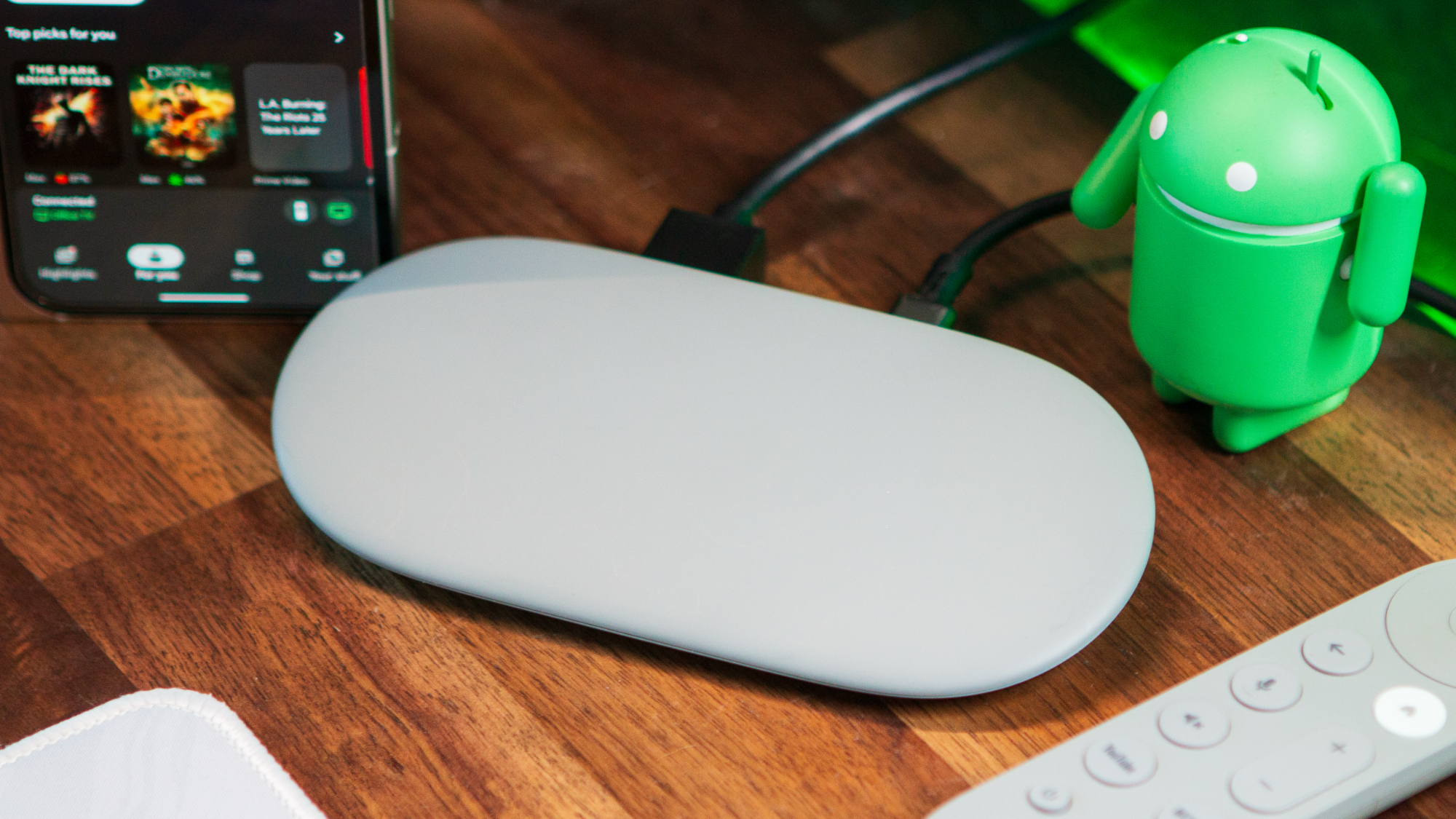

The Google TV Streamer 4K debuted in 2024 and continues to be one of the top external devices for utilizing Google TV. If you’ve recently acquired a smart TV, it likely comes with Google TV pre-installed, although the smoothness of the interface and features might differ based on the brand and model you own. For example, the ability to access the Google Home panel through Google TV was initially reserved for the TV Streamer 4K and later expanded to certain third-party TVs, but not all of them.
If you’ve recently purchased a Google TV Streamer 4K or haven’t taken the time to explore its full range of features, here are four important settings and functions to check out to maximize its potential as your home’s best streaming device.
### Adjust the TV Streamer’s frame rate to match the content
If certain shows and movies appear somewhat choppy to you, it’s not just your imagination; it’s likely due to a specific setting on the Google TV Streamer. On a 4K television, your TV Streamer typically defaults to the highest resolution, which is generally 4K 60Hz. When playing content, it will force everything to operate at 60Hz, which can create problems since many shows and films are intended to run at 24Hz.
Most streaming services like Netflix and Prime Video will adjust to the content’s original frame rate, but you must permit the Google TV Streamer to align with this.
To adjust this setting, adhere to these steps:
1. On the remote for your TV Streamer, long-press the **Home** button and select **All Settings**.
2. Pick the first menu item: Display and sound.
3. Scroll down to **Match content frame rate** and modify it from Never to **Always**.
The Seamless-only choice seems to apply to TVs equipped with Variable Refresh Rate (VRR). After activating this, your TV screen may temporarily black out when playing content below 60Hz as it transitions to a lower refresh rate, which is expected. Following this adjustment, you should notice that shows and movies play back smoothly without any strange glitches.
### Simplify your Google TV homescreen
If the standard Google TV homescreen feels cluttered, with the various recommendations, carousels, and ads, there is an easy method to turn these off. This is known as **Apps-only mode**, and activating it eliminates most recommendations from the homescreen, presenting you exclusively with your apps.
Give it a shot by navigating to **All Settings**, **Account and profiles**, selecting your account, and scrolling to the option titled **Apps-only mode**. A warning screen will appear outlining all the features that will be turned off, including search and voice. No need to fret; you can always return here and turn it off later if necessary.
After activation, the homescreen will refresh within a second or two, and you’ll be left with only your installed apps and limited tabs beside your profile image at the top. Personally, I enjoy the default view and recommendations, as I have come across some fantastic shows this way. Additionally, this feature allows you to take advantage of the next item on the list.
### Consolidate all your ‘watch-later’ content in one location
The Watchlist function in Google TV resembles what made Plex immensely popular among streaming fans long ago. You can bookmark nearly any piece of content from any streaming service into a universal **Watchlist** for later viewing. This allows you to have a single compilation of shows to revisit instead of separate lists across each streaming application.
To add content to the Watchlist, simply long-press the center button on the remote and scroll to **Add to Watchlist**. This menu option will instantly change to **Watchlisted**. If you have several accounts set up on the Google TV Streamer 4K, you can select which account’s watchlist you want to add the content to.
To view all your watchlisted shows, just select your profile image in the top-left corner of the homescreen and scroll down to **Watchlist** to see a carousel of all your bookmarked items.
### Connect headphones to your Google TV Streamer 4K
In case you were unaware, you can connect any Bluetooth headphones to the Google TV Streamer 4K and enjoy your content without bothering others. This is an often-overlooked feature that proves quite useful if you wish to continue watching late at night without disturbing your partner in the same room.
Navigate to **All Settings**, scroll down to **Remotes and accessories**, and choose **Pair remote or accessory**. Simply ensure your headphones/TWS are already in pairing mode and follow the on-screen prompts. The next time you power on your headphones, and if you haven’t paired them with any other devices…