

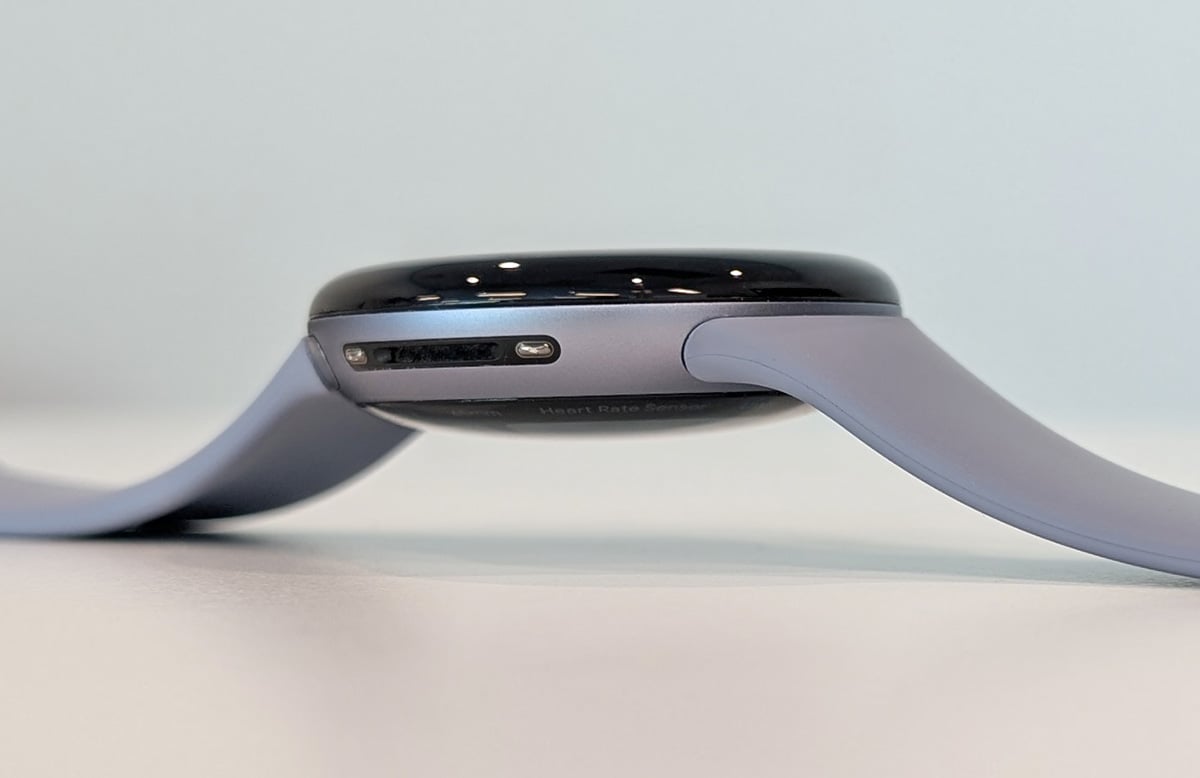
The Pixel Watch 4 outlasts the Watch 3 and Watch 2. Here’s how to ensure it stays that way (and maximize its usage).
The Pixel Watch 4 boasts impressive battery longevity for a Wear OS device, especially the 45mm version. If you’re aiming to extend its lifespan — for both immediate benefits and overall battery maintenance — there are several straightforward settings you should know!
One significant reason I rated the Pixel Watch 4 positively is its enhanced battery performance, along with quicker charging. The 45mm variant comfortably endures two days under optimal circumstances and excelled in my battery evaluation, managing GPS exercises or LTE streaming without difficulty.
Because of this, I often utilize Watch 4 settings that consume battery more rapidly for an improved user experience. However, for those who prefer the opposite approach and wish to optimize their Pixel Watch 4 battery life — particularly as its capacity diminishes over time — here are the simple tips and adjustments to help the Watch 4 last longer per charge.
Activate Battery Saver mode
Let’s begin with the straightforward setting that you’re likely already aware of. Swipe down from the main watch face to locate a battery icon with a percentage. Tap it, select Don’t show this again, then click the check mark. Now, tapping the battery icon will activate Battery Saver mode instantly.
This gives you an immediate way to set the Watch 4 into a more efficient mode, with restricted background operations, delayed notifications, and turned-off always-on display (AOD). If activated at 100%, Battery Saver allows the Watch 4 41mm and 45mm to last up to 40 or 72 hours, respectively.
This mode activates automatically at 15%; the threshold can’t be adjusted, so remember to monitor it yourself if you want to enable Battery Saver earlier in the day.
Deactivate AOD and modify your display timeout settings
Google estimates that the Pixel Watch 4 41mm and 45mm operate for 30 and 40 hours with AOD on, respectively; it doesn’t specify how long they last with AOD off, but you’ll likely gain a few additional hours, which accumulate to fewer charging cycles over time.
I enjoy using AOD to quickly glance at my wrist for information without needing tilt-to-wake, and it adds a stylish touch to the watch. However, if you’re okay with sacrificing those benefits, go to the watch settings, select Display, and then toggle Always-on screen off.
In the same menu, you can adjust the screen timeout from the default 15 seconds to 10 seconds, subtly reducing power consumption over time.
There’s also the Go to watch face delay setting: By choosing a longer duration like “after 1 minute,” the Watch 4 keeps your current app or menu open for a minute even if the screen dims, which consumes more battery. Instead, opt for something shorter like “After 15 seconds,” or even “Immediately,” which enhances its endurance but (annoyingly) forces you to navigate back to an app if you get distracted.
Lastly, adaptive brightness is enabled by default, as it should be, but another battery-saving option is to tap the Brightness setting, turn it off, and then tap the – button to set the lowest brightness as the default. You won’t utilize the Watch 4’s 3,000 nits, but it will last beyond a day.
Turn off sounds/vibrations and tilt-to-wake
I want to reiterate that I wouldn’t necessarily do this, but for maximum Watch 4 capacity, disable tilt-to-wake so that you only activate the display by tapping it or rotating it. Navigate to Settings > Gestures and turn Tilt-to-Wake off.
As a side note: You may want to disable Gemini Raise to Talk in the same menu, as that’s another tracked gesture that activates the display and microphone. Alternatively, reduce the voice and motion sensitivity to lower the chances of accidental activation.
Next, decide whether you prefer your notifications with sound or vibrations. I’m uncertain which is more efficient, but it’s advisable to disable one of them and lessen the intensity of the other.
First, go to Settings > Sound and select Mute ring & notifications, or lower the volume for ringtones, notifications, alarms, media, and calls. Then, head to Settings > Vibration and either switch off Vibration & haptics or decrease the intensity for Ring, Notification, and Alarm vibrations. You can also disable “interactive haptics,” which refers to the subtle vibration when turning the crown or tapping display options.
Utilize Adaptive Charging (and be wise about when to charge)
The Pixel Watch 4 has Adaptive Charging set by default. Essentially, Google learns your charging habits so that, if you generally charge your watch overnight, it predicts your typical wake-up time and pauses charging until it reaches 100%.