
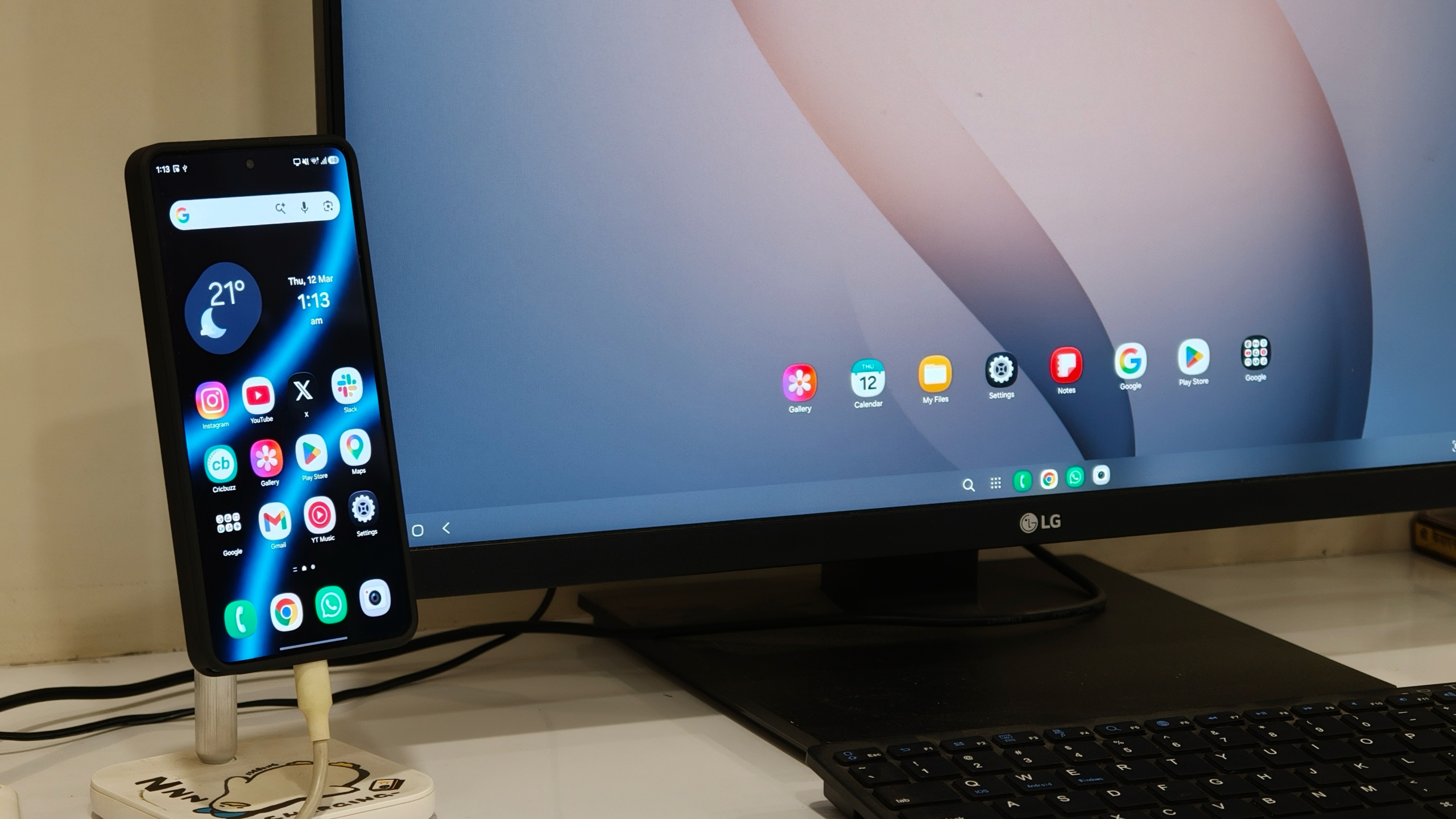

Samsung has enhanced DeX on the Galaxy S26, delivering a more robust desktop experience.
Samsung DeX has been a feature on Galaxy devices for many years and is a primary reason I often favor Samsung’s top phones over other Android options. Although Google has simplified access to Android’s desktop mode with the recent Android 16 QPR3 update, Samsung DeX still feels ahead of the pack.
With the Galaxy Z Trifold, Samsung has streamlined access to DeX mode directly on the device. Users can effortlessly switch from the regular One UI 8 to Samsung DeX with a single tap on the foldable itself.
The Galaxy S26 Ultra, while not providing a large enough screen for the same on-device experience, has seen a quiet upgrade to DeX. It is now powerful enough in certain scenarios that it could feasibly replace my laptop.
Samsung DeX reaches new levels of capability on the Galaxy S26 series.
The primary DeX functionality on the Galaxy S26 Ultra remains fairly consistent. You connect your phone to an external monitor using a USB-C cable, and a desktop-like interface appears. This resembles a conventional desktop setting, featuring a taskbar at the bottom, a notification and control area on the right, navigation controls on the left, and a spacious workspace for opening multiple applications in distinct windows.
What has notably advanced on the Galaxy S26 series, particularly with the Snapdragon 8 Elite Gen 5 powering the Galaxy S26 Ultra, is the ability to run many more apps concurrently. The additional performance allows the system to handle multiple applications simultaneously without any lag.
On my Mac, I often manage several desktops, each hosting a different array of applications. For instance, one desktop features Firefox, while another contains Photoshop. Samsung has introduced a similar feature to DeX on the Galaxy S26 Ultra by supporting multiple desktops.
Now, users can open up to four desktops at once, with as many as five applications running on each. This means a total of 20 applications can function alongside each other if necessary. This capability was not possible before, but the Galaxy S26 Ultra manages it seamlessly. I tested this setup with a Galaxy S26 Ultra connected to my 27-inch 4K LG monitor, and the experience felt surprisingly akin to using my Mac.
Applications launch swiftly, animations remain fluid, and for software that already accommodates larger screens, particularly Chrome and other Google applications, the experience is very reminiscent of a standard desktop operating system.
I can foresee how this could be advantageous for many users over time. Picture carrying just a portable display and a USB-C cable linked to your phone, yet still being able to accomplish most of your work from your pocket device.
This is something productivity-driven users are likely to value. The system is potent enough to enable photo or video editing on the go, alongside normal tasks like writing or emailing.
What’s even more impressive is that you can continue utilizing your phone concurrently. DeX keeps functioning on the external monitor while One UI 8.5 continues on the phone itself. Thus, you can still respond to messages, answer calls, or check notifications on your phone, which doesn’t cease when you connect to an external monitor.
Within the Settings app on your Galaxy S26, you can personalize various DeX elements, including modifying the output resolution for your monitor, adjusting mouse or trackpad tracking speed, and even using your Galaxy S26 as a touchpad for the external display.
Multitasking in DeX has never been better.
One feature I particularly appreciate, which Samsung introduced with the Galaxy S26, is the option to cycle between windows using the Command + Arrow shortcut. You must manually enable this in DeX settings, but once activated, you can hold the Command key and use the Arrow keys to navigate between desktops, similar to managing spaces on macOS.
However, I still wish Samsung had implemented a few additional features to enhance the DeX experience. For instance, it would be fantastic to allow more than two applications in split-screen mode side by side. This could potentially be included in a software update, given that the hardware appears sufficiently powerful.
Even in its existing form, it provides a surprisingly effective desktop experience. I can envision it being particularly useful in scenarios where you leave your laptop behind but still need to edit a document quickly at college or work. Simply connect your phone to an external monitor with a cable, and it is certainly capable of managing that task efficiently.