

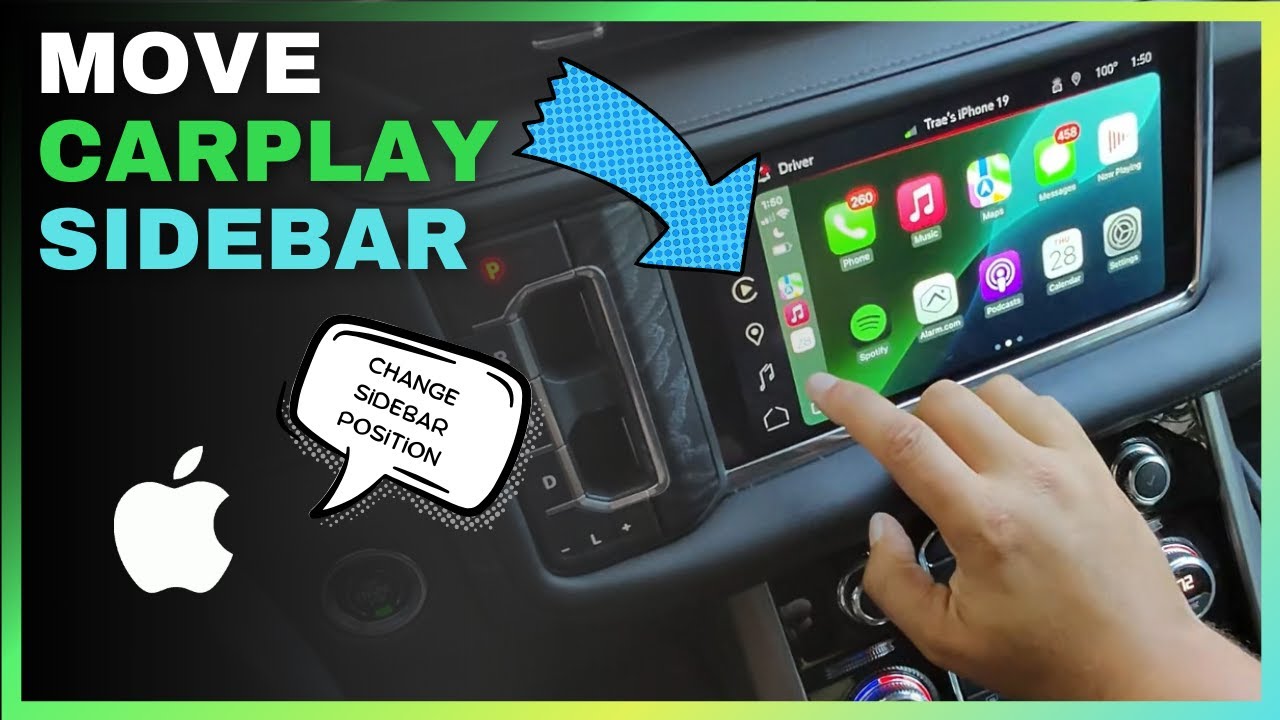
# Adjusting Your CarPlay App Layout
Have you ever wanted to rearrange or remove apps from CarPlay? Fortunately, you can, though the process differs from changing your iPhone Home screen arrangement. The key is found in the Settings app on your iPhone. Just be sure not to attempt this while driving. You can also make these changes without being connected to CarPlay.
## Adjusting Your CarPlay App Layout
If you’ve connected your iPhone to CarPlay at any point, you can adjust the app layout without being next to your car. Note that the custom app layout is unique to each vehicle, so you’ll have to repeat the process if you want the same configuration across different vehicles.
### Steps to Adjust Your CarPlay Apps
1. Launch the Settings app on your iPhone and select General.
2. Choose CarPlay; it should appear as the eighth entry on the list.
3. Pick your vehicle from the list of connected cars, then tap Customize.
Once you’re in this section, you can rearrange apps to your liking by dragging them vertically. The interface operates a bit differently, as sorting app names on a list isn’t the usual way we rearrange iPhone apps. This design choice might be influenced by the diverse layouts of various CarPlay screens.
### Familiarizing Yourself with CarPlay Screen Layouts
You’ll want to know how many apps can fit on one page of your CarPlay screen. A typical configuration is 2×4 (two rows and four columns). If this matches your setup, reference the following guide for sorting order:
1. Top left icon
2. Second from top left icon
3. Second from top right icon
4. Top right icon
5. Bottom left icon
6. Second from bottom left icon
7. Second from bottom right icon
8. Bottom right icon
Continue this sorting for every eight slots to arrange page by page.
Some CarPlay screens may have a different layout, like 2×5 or 4×4. If so, remember to consider the differences in sorting order when organizing by page.
### Concealing CarPlay Apps
The app arrangement interface also lets you conceal or reveal CarPlay apps. Hiding a CarPlay app permits you to eliminate it from CarPlay without removing it from your iPhone.
For additional information regarding CarPlay apps, check out the ongoing lists of [top CarPlay apps](https://9to5mac.com/best-carplay-apps/) and [top EV apps for CarPlay](https://9to5mac.com/these-are-the-best-carplay-apps-for-ev-owners/).