
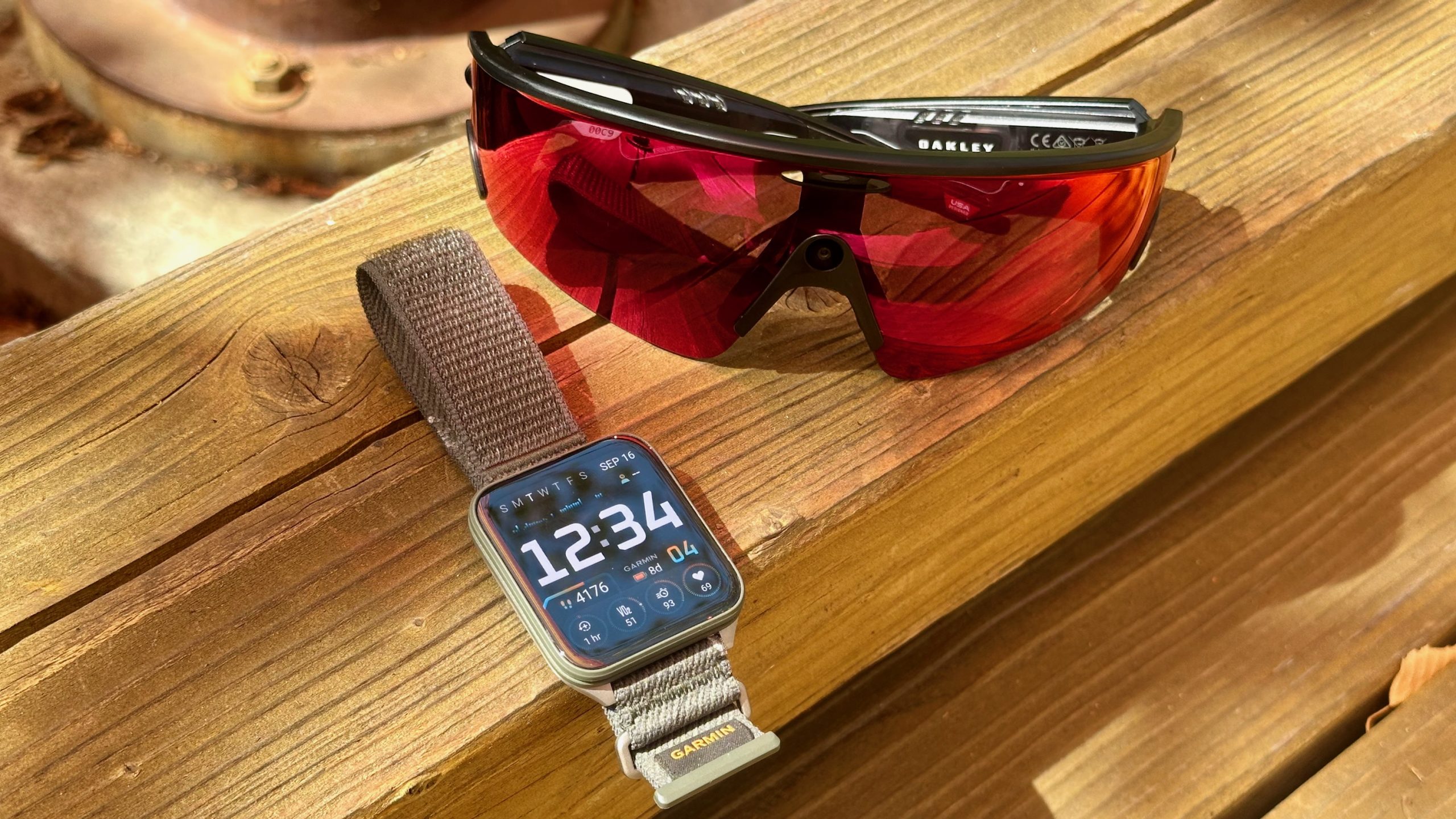

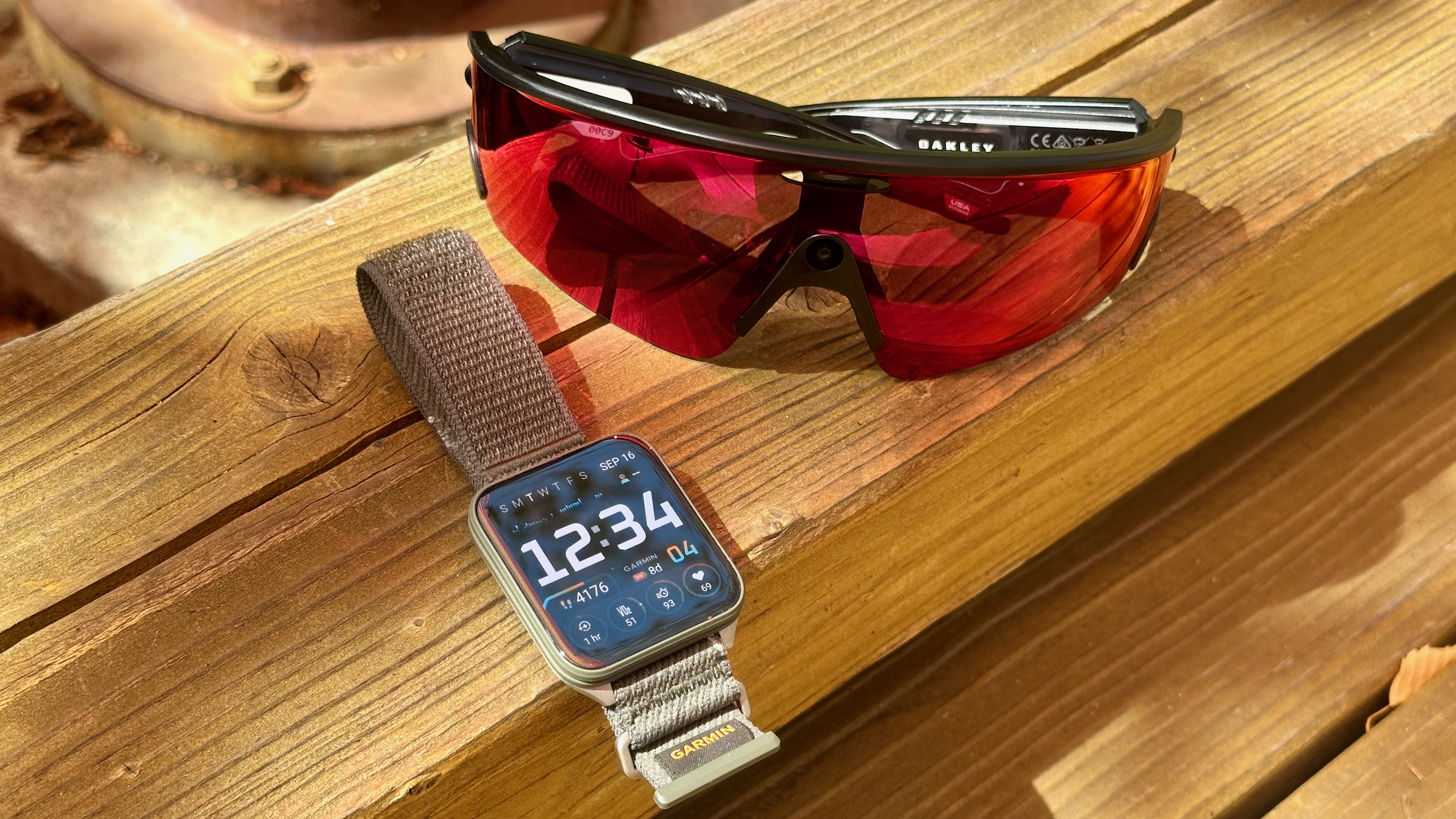
Last fall, Meta revealed an exciting collaboration with Garmin, enabling Oakley Meta and Ray-Ban Meta users to connect their glasses with smartwatches. This innovation allows intricate Garmin fitness metrics gathered from your smartwatch to be seamlessly displayed over any videos captured from your glasses during workouts.
As someone who enjoys participating in Spartan races, I was thrilled by the prospect of visually showcasing my fitness information alongside the obstacles I faced in each race. However, my Garmin watch was outdated and lacked the Meta AI linking functionality. Given the high cost of Garmin watches, I hadn’t been eager to purchase a new one, but a recent collaboration between Meta and Strava proved to be the solution I was seeking.
Now, any Ray-Ban Meta or Oakley Meta user can receive a fantastic stats overlay on their videos by connecting the Strava app with the Meta AI app. The metrics provided through this integration are sufficient for me to defer the need for a newer Garmin watch for some time, which is delightful news.
How to connect Strava and Meta AI glasses
Initially, I assumed the Meta AI and Strava partnership would automatically tag any videos recorded concurrently with a workout sent to Strava. I visited the gym for my routine workout session and tracked the entire experience, even capturing several of the 400-meter sprints I was assigned, but I struggled to find a way to include the Strava stats in my videos.
It appears that you must start the workout tracking through the Strava app, which is perfectly fine if you’re using a Wear OS watch like the OnePlus Watch 3 43mm I have. You can also utilize the Strava mobile app, but you will miss out on heart rate metrics.
Regrettably, there is no method to connect Strava exercises to videos recorded with Meta AI glasses if the workout wasn’t captured using the Strava app. This means you won’t be able to add stats to past videos, but at least you’re aware of this moving forward.
To begin, open the Meta AI app, tap the devices tab at the bottom, then select the settings gear next to your glasses. From the list, choose App Connections, then pick Strava from the options available. Log in with your Strava account and grant the necessary permissions required to track your metrics.
Now, when you’re prepared to work out, initiate the activity from the Strava app on your smartphone or smartwatch. While Strava tracks your workout, record videos with your Meta AI glasses. Photos don’t appear to have the option for overlaying stats, only videos do.
After completing your workout, launch the Meta AI app on your phone, tap the devices tab at the bottom, and select gallery. Open one of the videos you recorded during your workout, then tap the stats button in the top left corner. Activate the stats slider, then choose up to five available stats to overlay on your video.
By default, the stats panel displays real-time data as you progress through the video, but you can switch it to a summary by selecting Stat Type in this section and changing it to summary. Each of these stat types presents different metrics, making it enjoyable to use both types for various videos. Utilizing a smartwatch to record your Strava workout will yield the most stats since it can capture heart rate and additional data points.
Once you’re satisfied with your stats, tap the Save button in the top right to store a new video in your phone’s gallery. Now you can share the video with overlaid stats through either the Meta AI app or your preferred gallery application on your phone, such as Google Photos.