

# The Significance of Data Backup for Apple Users
There’s a famous saying that identifies two types of people in the world: those who have faced significant data loss and those who will face significant data loss. World Backup Day serves as an excellent reminder to make sure you’re safeguarded against being part of the latter group.
Luckily, Apple devices simplify the process of keeping them automatically backed up, yet it remains concerning how many users neglect to do this.
## The Dangers of Data Loss
The personal information we preserve on our Apple devices can be truly invaluable, with photos and videos being the most apparent instances. Consider the heartbreak of parents losing the recording of their child’s first steps. Many of us possess photos and videos that exist solely in digital form, making the thought of losing them unbearable.
There are numerous other forms of data whose loss could lead to significant issues. Picture losing your calendar information and being left without a record of future meetings, appointments, or plans. What if all your financial documents vanished and you were left to justify that to the IRS during the next tax season?
Additional examples that could lead to serious repercussions include losing all your saved passwords, Apple Notes, stored emails, and even cherished text messages.
One estimate suggests that approximately 140,000 hard drives fail weekly. Another estimate reveals that 113 phones are lost or stolen each minute.
## ‘One is None, Two is One’
Another saying in IT goes, “one is none and two is one.” This means that having just one copy of your data can swiftly turn into zero copies in the event of media failure. Having two copies can quickly reduce you to having just one under similar circumstances.
The best practice is to maintain a minimum of three copies of crucial data, with at least one stored offsite. Thankfully, cloud services make this remarkably easy to accomplish, requiring no effort after the initial setup.
## How to Back Up Your iPhone and iPad
The most straightforward and popular method for backing up your iPhone and iPad is via iCloud. As Apple limits the free tier to a mere 5GB, a paid subscription will be necessary for this.
1. Launch the Settings app, tap your name at the top, then select iCloud > iCloud Backup.
2. Ensure “Back Up This iPhone” is enabled. If not, turn it on and tap the Back Up Now button.
3. If you haven’t yet subscribed to iCloud+, navigate to Settings > iCloud and scroll to “iCloud+ features” then select the Manage Plan button.
You will need to choose whether to back up using mobile data or wait for a Wi-Fi connection. If you have unlimited data or a generous data plan, enabling the mobile data backup option is the safest choice.
While in the iCloud section, check the Saved to iCloud panel and tap See All. Confirm that all data you wish to secure is toggled on, including photos, email, passwords, notes, messages, calendar, contacts, and reminders.
As an alternative or addition to an iCloud backup, you can back up an iPhone to your Mac. However, storing a local backup at home leaves you at risk of losing all data in case of a house fire or natural disaster. Other options include third-party apps and external drives for iOS devices, along with additional cloud services like Dropbox. Nevertheless, iCloud backup is highly recommended due to its “set it and forget it” nature.
## How to Backup Your Mac Locally
Apple facilitates easy automatic backups through Time Machine, a robust automated backup feature for Macs. To set this up:
1. Connect a sufficiently large external drive to your Mac.
2. You will be prompted to decide whether to use it for Time Machine.
Time Machine generates versioned backups, meaning it saves incremental backups over various periods, rather than just the current contents of your Mac. This is beneficial when you delete a file and later realize you still need it. The larger the external drive, the more versions will be saved. Ideally, select a drive that is at least double the size of your Mac’s SSD.
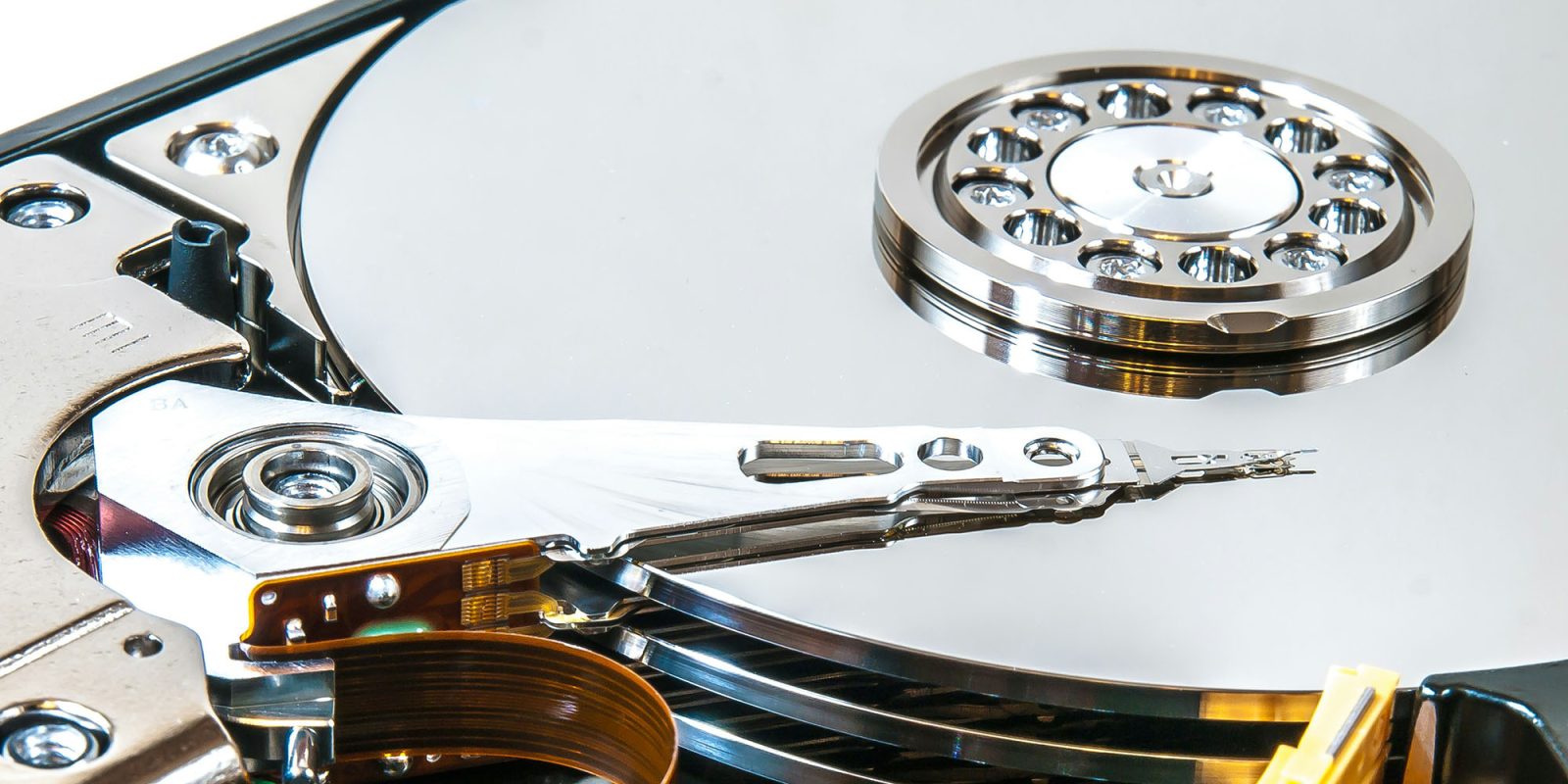
You can save costs by opting for a spinning metal hard drive instead of an SSD. While the initial backup may take longer, it will easily keep pace afterward, and hard drives are significantly more affordable than SSDs.
For enhanced safety, consider using multiple external drives for Time Machine backups; your Mac will automatically alternate between them.
## Cloud Backups of Macs
The previous warning about the dangers of having only a locally stored backup still holds true. It is highly advisable to utilize a cloud service for storing copies of your most critical files.
Generally, your desktop and documents folders are the primary directories you’ll want to back up to the cloud.