
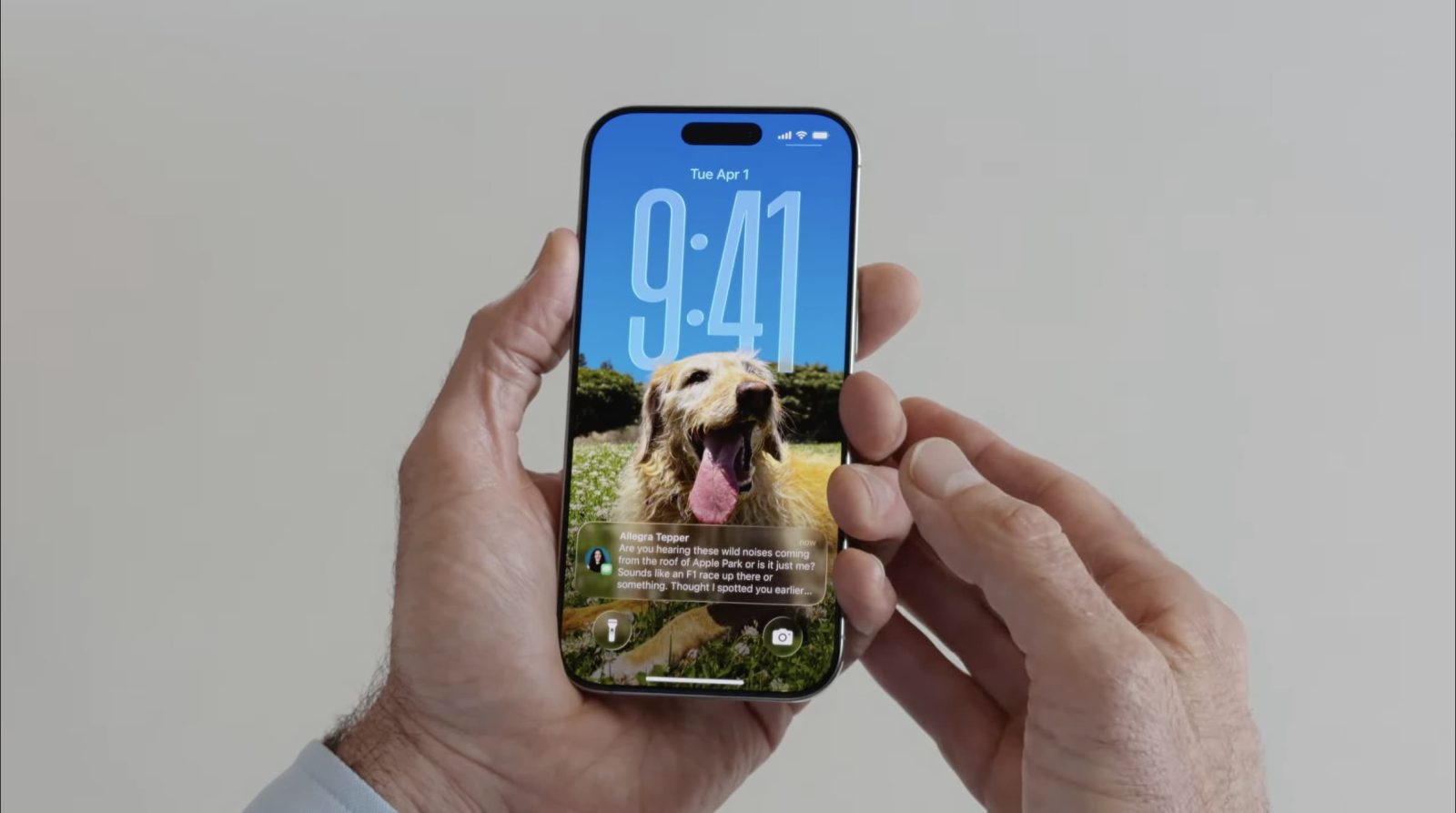

# How to Apply 3D Spatial Effect to Your iPhone’s Wallpaper in iOS 26
iOS 26 has unveiled a variety of new features aimed at enhancing the personalization of your iPhone, among which are the thrilling 3D spatial wallpapers. Available since the launch of iOS 26.0, this feature enables users to infuse a dynamic 3D effect into their wallpaper, rendering it more captivating and unique. Here’s how you can leverage this feature to animate your iPhone’s wallpaper.
## What are 3D Spatial Wallpapers?
As per Apple’s official iOS 26 release notes, spatial scenes permit users to incorporate a fresh 3D effect into their photo wallpapers, fostering a sense of depth that responds to your device’s movements. This effect amplifies the aesthetic allure of your wallpaper, giving it a more interactive feel.
## Steps to Apply the 3D Spatial Effect
To implement the 3D spatial effect on your iPhone’s wallpaper, adhere to these straightforward steps:
1. **Open Settings**: Navigate to the Settings app on your iPhone.
2. **Select Wallpaper**: Tap on the ‘Wallpaper’ option.
3. **Add New Wallpaper**: Press the ‘Add New Wallpaper’ button.
4. **Choose Photos**: Tap ‘Photos’ located in the top-left corner to open your photo library.
5. **Select Your Photo**: Browse and select the photo you wish to set as your wallpaper.
6. **Activate the Spatial Effect**: Tap the geometric photo icon found near the lower-right section of the screen. This will create the spatial scene effect.
7. **Test the Effect**: Tilt your iPhone from side to side to observe the 3D effect in action.
8. **Save Your Wallpaper**: If you’re pleased with the effect, press ‘Add’ to save the wallpaper.
## Conclusion
The 3D spatial effect is a charming addition to the wallpaper customization features in iOS 26. It serves as a minor yet significant way to enhance your iPhone experience, making your device feel more tailored and vibrant. If you haven’t experimented with the 3D spatial effect for your wallpaper yet, now is the ideal moment to discover this feature and refresh your iPhone’s appearance.