
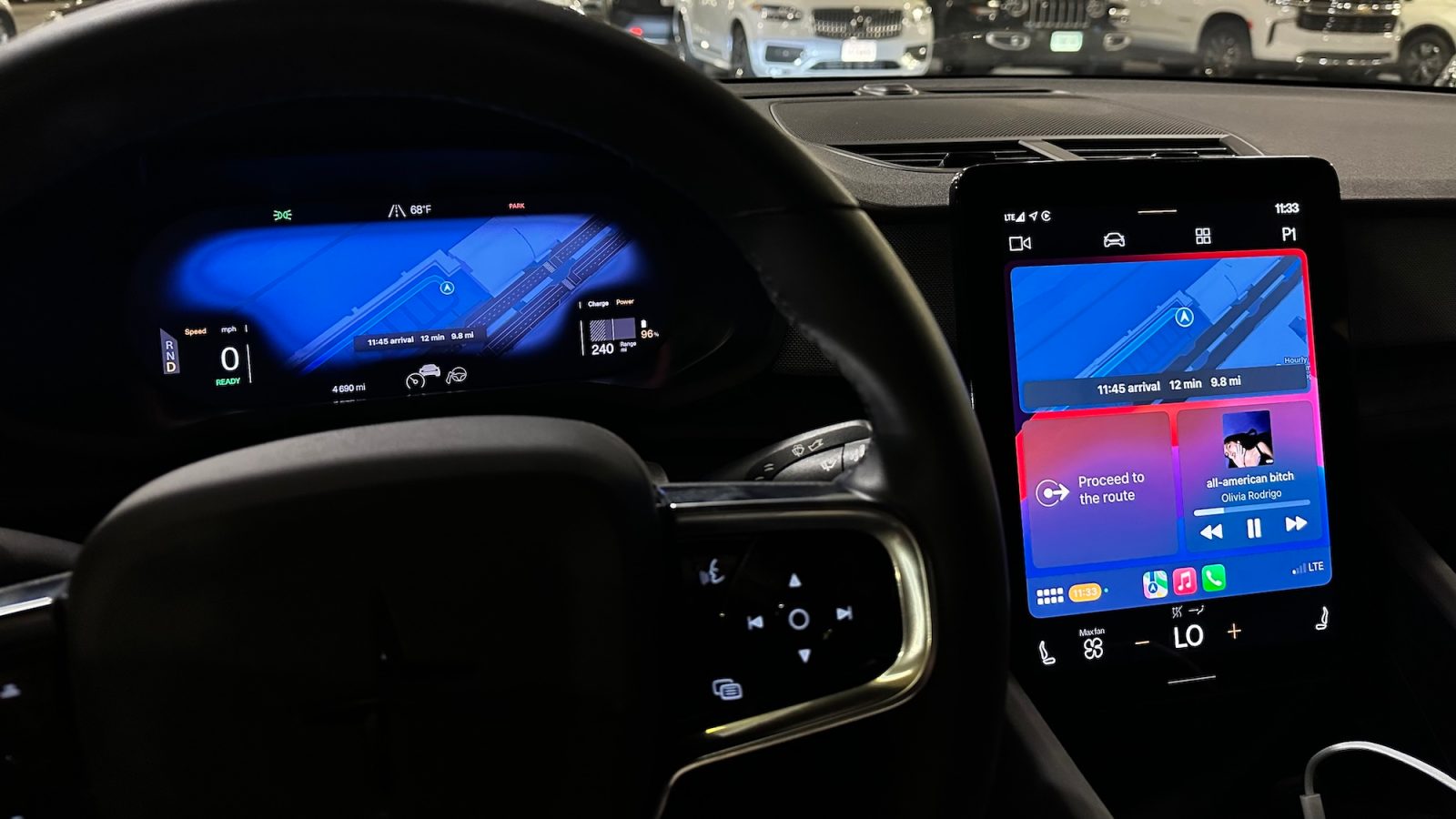

Enhanced CarPlay Experience: Tips and Techniques
For most individuals, CarPlay is essential. Apple’s in-vehicle interface delivers a significantly improved infotainment experience compared to many offerings from automotive manufacturers. With instant access to your favorite applications, Siri integration, smooth connectivity, and more, CarPlay enriches your driving journey. Below are some suggestions and techniques to make sure you’re maximizing your CarPlay experience.
Personalize Your CarPlay Apps and Home Screen
While a variety of apps are accessible on CarPlay, you might not desire all of them on your Home Screen. To personalize your CarPlay configuration:
1. Launch the Settings app on your iPhone.
2. Tap “General.”
3. Tap “CarPlay.”
4. Select your car’s name and hit “Customize.”
Here, you can conceal apps by tapping the red minus sign and rearrange your Home Screen by dragging the apps into your preferred sequence.
CarPlay Backgrounds
Although you can’t set any image as your CarPlay background, Apple provides a range of pre-installed choices. To modify your background:
1. Access the Settings app on CarPlay.
2. Click on “Wallpaper.”
3. Pick your preferred wallpaper and tap “Set.”
Apple occasionally adds new wallpaper choices, but the variety remains limited.
Wireless or Wired?
CarPlay functions both wired and wirelessly, based on your vehicle’s brand and model. Wired CarPlay typically offers a quicker and more stable experience, while wireless CarPlay may exhibit some lag.
Approach:
– Opt for wireless CarPlay for quick outings around town.
– Use wired CarPlay for extended journeys.
If your vehicle only allows wired CarPlay, think about using a wireless adapter like the CarlinKit 5.0, which converts wired CarPlay to wireless for under $60.
Dark Mode
CarPlay features light and dark mode interfaces. You can select from three options in the Settings app through CarPlay:
1. Light
2. Dark
3. Automatic
Using the automatic option allows CarPlay to switch modes according to the time of day and external light conditions.
Driving Focus Mode
CarPlay improves in-vehicle safety by discouraging smartphone use. The Driving Focus mode blocks incoming alerts, messages, and calls. You can personalize this mode through the Settings app on your iPhone, permitting notifications from specific contacts and enabling auto-replies.
Announce Messages
The Announce Messages feature enables Siri to read your messages aloud, and you can respond using your voice. To activate this feature:
1. Navigate to Settings > Siri & Search > Announce Notifications on your iPhone.
2. Enable Announce Notifications and select supported applications.
3. In CarPlay, ensure Announce Messages with Siri is activated in the CarPlay Settings app.
SharePlay
CarPlay incorporates SharePlay, permitting passengers to add songs to your music playlist. You can create a QR code for others to scan, allowing them to join your SharePlay session.
Widgets
With iOS 26, CarPlay now supports widgets. You can access your favorite iPhone widgets on your vehicle’s display. To manage widgets:
1. Open the Settings app.
2. Select General.
3. Choose CarPlay.
4. Tap “Widgets.”
You can include multiple widgets to your stack and reorder them, with choices for “Smart Rotate” and “Widget Suggestions.”
Live Activities
iOS 26 also brings Live Activities to CarPlay, mirroring those available on your iPhone. Live Activities are enabled by default but can be disabled in the CarPlay Settings app.
Pinned Messages
The Messages app in CarPlay now features pinned messages at the top. If you prefer not to view pinned conversations, you can turn off this feature by toggling “Pinned Messages” in the CarPlay Settings app.
Icon Tinting
To refresh your CarPlay interface, you can select from several appearance modes: Default, Dark, and Clear. These choices are found in the Settings app on CarPlay.
Conclusion
Are you a CarPlay enthusiast? What are some of your preferred tips and techniques? Share your insights and experiences to enrich the CarPlay community.