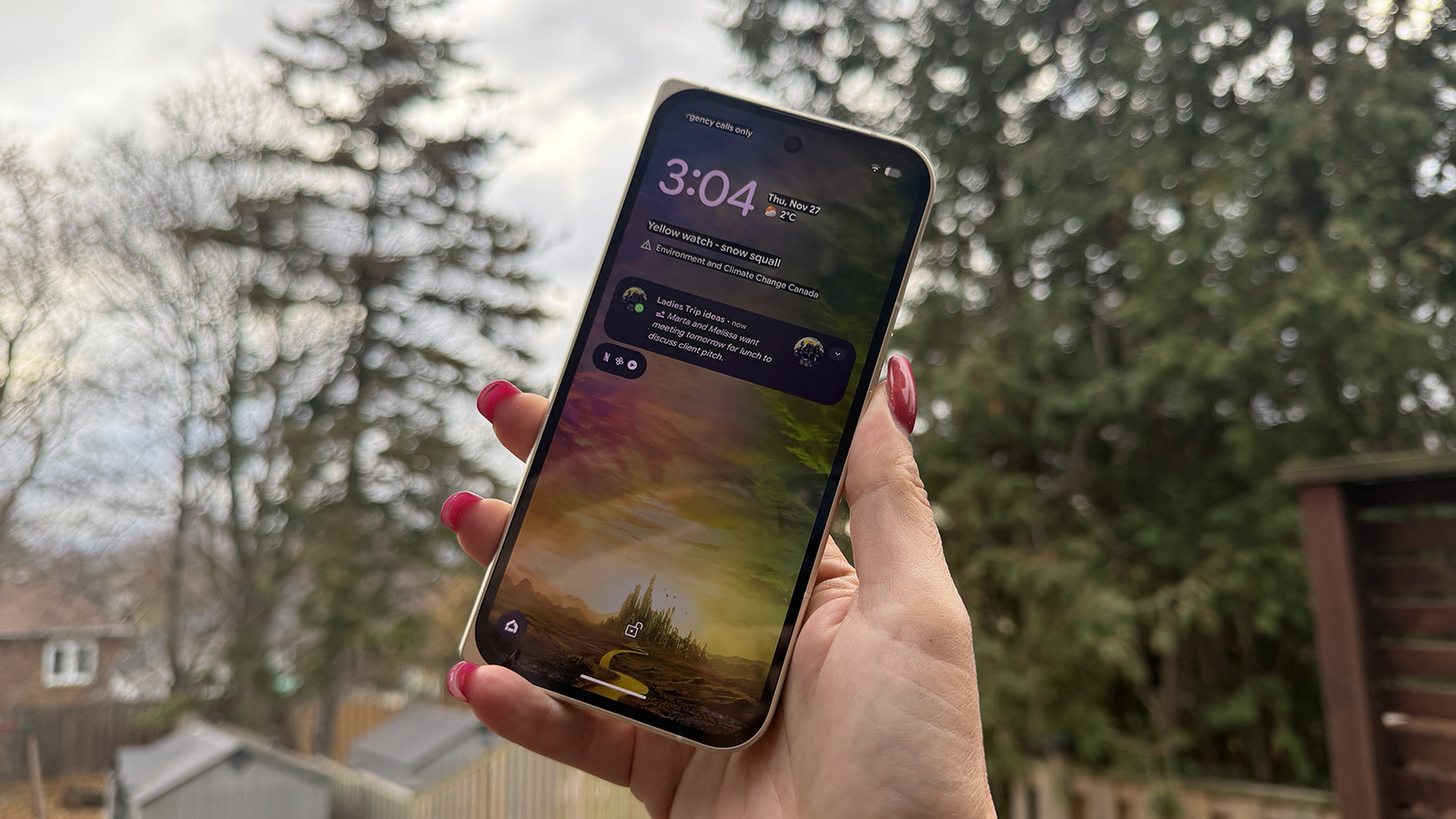
Here’s how to coordinate your app icons with your wallpaper — or any theme you prefer.
Google’s Pixel devices feature some of the most powerful customization capabilities found in the Android environment. You can opt for a branded theme pack to transform your device’s look with just a single tap, or you can make individual customization adjustments. Google’s Pixel Launcher is among the select Android variants capable of aligning all of your home screen app icons with your preferred system theme.
With numerous options accessible for Google Pixel phones, it might seem overwhelming. Fortunately, this guide will detail all the methods for adjusting your app icon and theme on a Pixel.
Google Pixel phones now offer an array of color and theming features, including the latest addition, Pixel theme packs. Currently, these are branded system themes that can alter your wallpaper, system theme, and app icons with a single tap. The existing theme packs available draw inspiration from the “Wicked: For Good” film. You can find a comprehensive guide on utilizing Pixel theme packs here.
Pixels also enable you to select a color palette that modifies system components, ranging from the hue of your Settings app to the tint of your Quick settings menu. These can be chosen according to your wallpaper or selected manually. There’s a beta feature that ensures all app icons correspond with your chosen color palette theme as well.
Importantly, app icons will remain standard in the app drawer but will conform to your color palette on your home screen when app icon theming is activated. All these features require manual setup and are disabled by default.
Google provides a variety of customization options for Google Pixel phones within the Wallpaper & style section of the Settings app. Here’s how you can utilize it to alter your system theme and app icon theme:
1. Launch the Settings app.
2. Select the Wallpaper & style tab.
3. Swipe left to access the Home screen settings.
4. Tap one of the following tabs: Theme pack, Colors, or Icons.
5. In the Theme pack section, pick one of three Wicked-themed packs (For Good, Glinda, or Elphaba) to implement comprehensive changes to your system. A theme pack will modify your home screen, lock screen, color palette, and app icon theme with a single tap.
6. In the Colors section, select a suggested color palette based on your wallpaper to apply for your system theme.
7. Alternatively, tap Other colors within the Colors section to choose
