

Many users are transitioning to Claude after a series of controversies involving ChatGPT and its parent company, OpenAI.
The turning point occurred when Anthropic, the creator of Claude, denied the Department of Defense access to its AI models for mass domestic surveillance or autonomous weapons. In response, President Trump ordered federal agencies to cease using Anthropic’s products, and Defense Secretary Pete Hegseth announced plans to label the company a supply-chain threat.
Shortly after, OpenAI announced a deal with the Pentagon, claiming it included safeguards, yet the agreement has ignited widespread debates on privacy and AI ethics.
As a consequence, Claude has excelled to the top of the free app rankings in Apple’s US App Store, surpassing ChatGPT. Anthropic reports daily signups at record levels, with free users increasing by over 60% since January, and paid subscribers more than doubling this year.
For many, the recent controversy makes Claude an appealing alternative to ChatGPT. If you’re considering the switch, this guide can help you transfer your data and close your ChatGPT account.
**How to Export Your Data from ChatGPT**
Transitioning from ChatGPT shouldn’t mean losing years of digital history. Instead of starting fresh with a new AI assistant, transfer your data to Claude to keep your preferences intact.
Start by navigating to Settings, then Personalization, and locate the Memory section. Select “Manage,” review stored information, update as necessary, and copy the data you wish to retain.
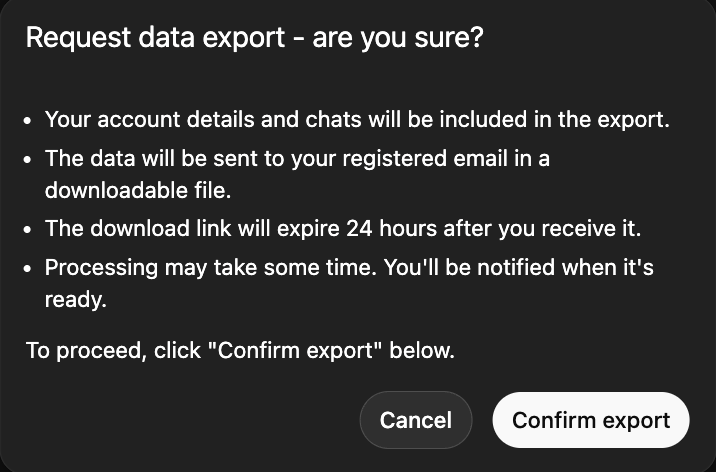
Alternatively, export your chat history. Go to Settings, select Data Controls, and choose “Export Data.” ChatGPT will compile your records into text or JSON files and email them to you. Note that this may take time if there’s extensive history.
Another option is to manually copy significant conversations or ask ChatGPT to summarize preferences, frequently discussed topics, and custom instructions.
**Import Your Data into Claude**
After gathering your data, transferring it to Claude is simple.
Open Claude, access Settings, then Capabilities, and ensure the Memory function is enabled. (This requires a Pro, Max, Team, or Enterprise plan.) Start a new conversation and prompt with, “Here’s some important context I’d like you to remember. Update your memory about me with this,” then paste your information or summaries.
For exported chat files, don’t paste raw logs. Instead, ask Claude to “Review this and summarize my key preferences.”
Verify with Claude that your data has been accurately saved and update your preferences as needed.
**Permanently Delete Your ChatGPT Account**
To fully sever ties with ChatGPT, merely canceling your subscription won’t remove your data.
Here’s how to proceed:
– Go to Settings, then Personalization, and select Memory.
– Delete any stored memory or personalization settings.
– As a final assurance, input “Delete all my memory and personalized data” as a chat command.
– Navigate to account management settings to completely delete your account.