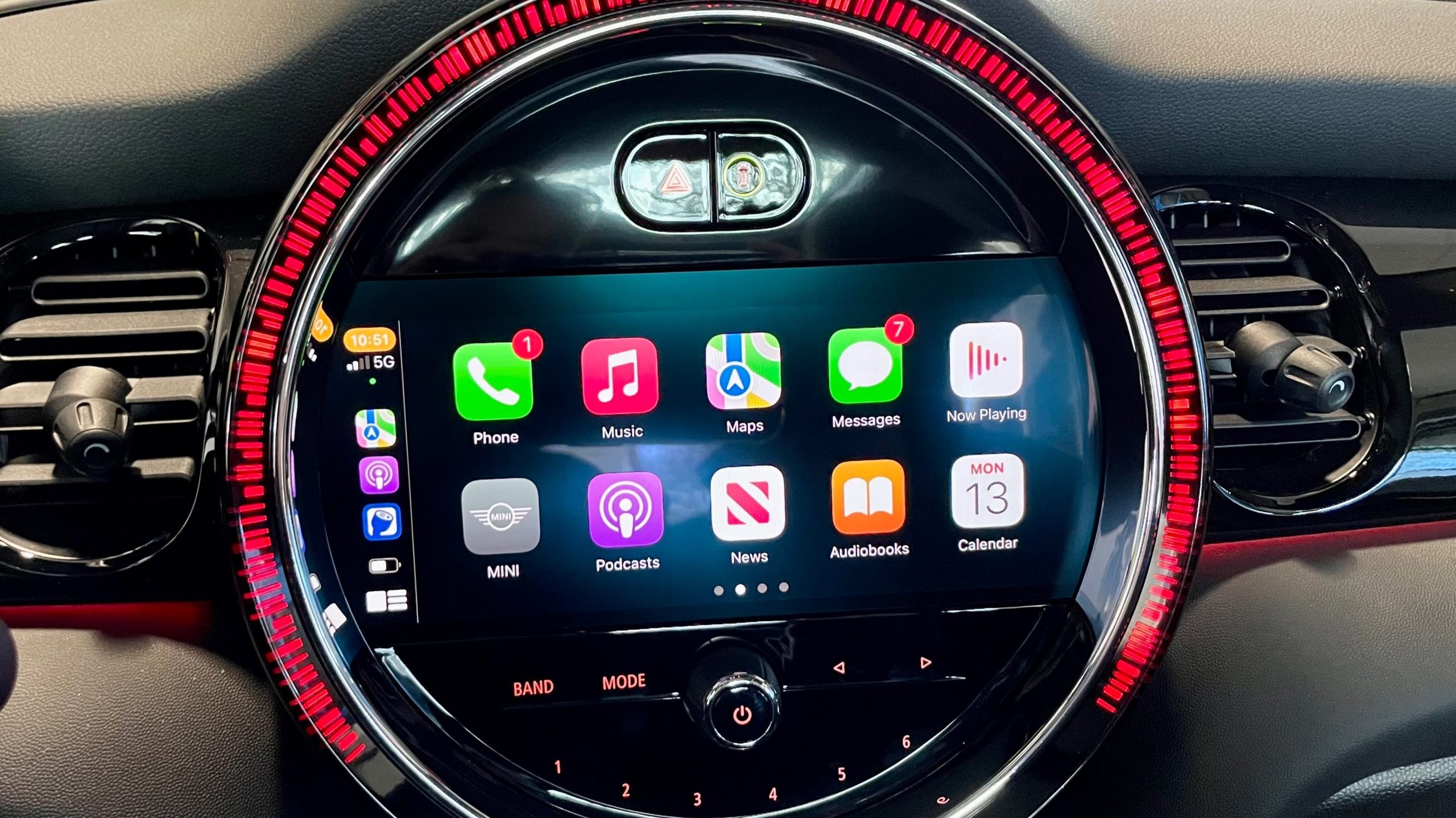
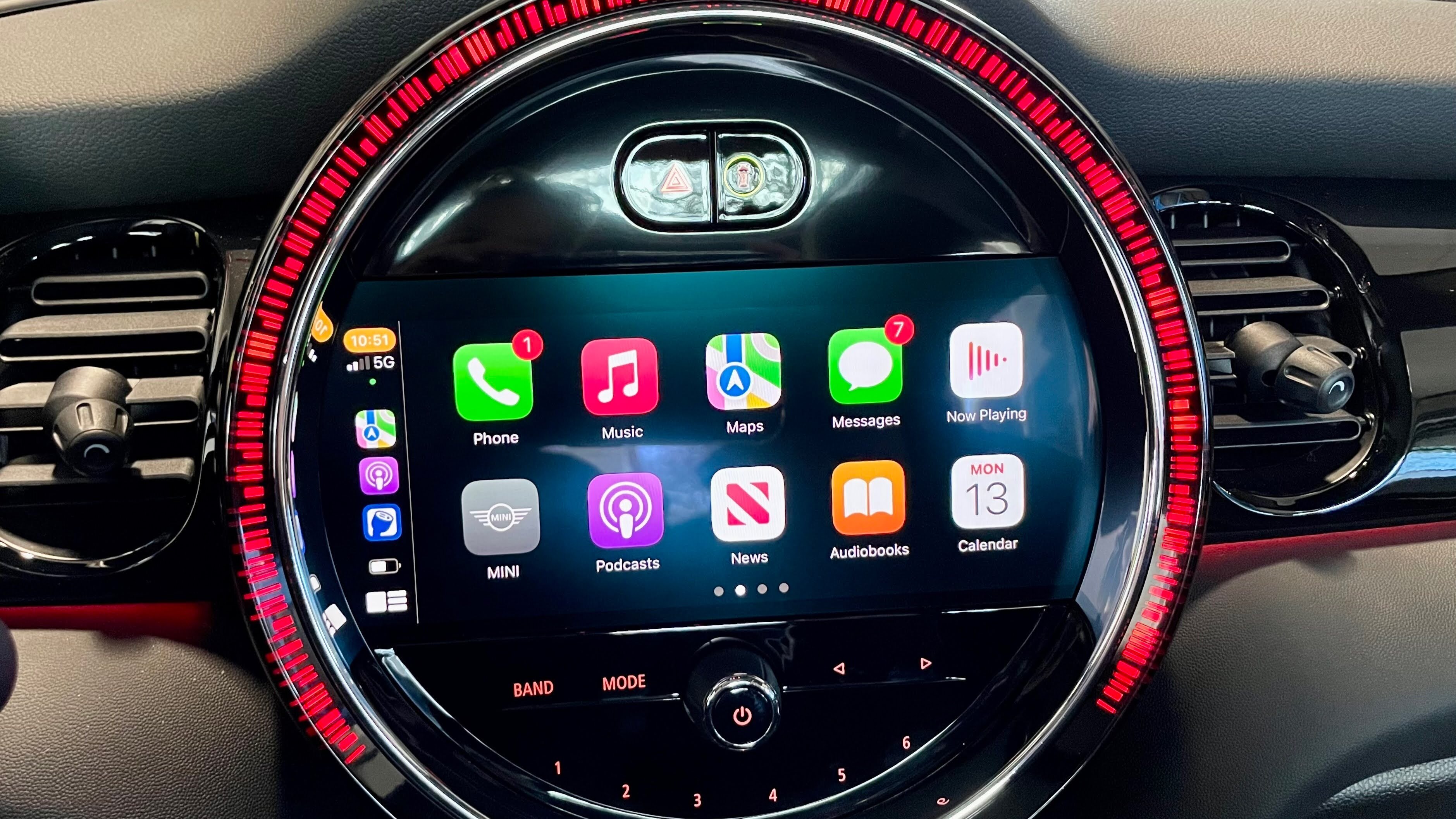
one of the most frustrating iOS features — particularly since Apple Intelligence came into play. As a part of iOS, Siri is also integrated into the Apple CarPlay experience. It can help you get directions, check reminders, play a song similar to the one currently playing, and more.
The Apple assistant additionally provides Siri Suggestions, a functionality that analyzes your iPhone usage to propose activities you might like to pursue. For those using CarPlay, Siri might recommend closing the garage door upon arriving home or prompt you to drive to a meeting. If you prefer to forgo Siri Suggestions while driving, turning off the feature in CarPlay is straightforward: just access the Settings menu and toggle Suggestions in CarPlay on or off.
But what if you’d like to receive some of the suggestions from Siri, but not all of them? In that instance, keep Suggestions enabled, and try this approach instead. When a Siri Suggestion appears on your CarPlay dashboard that you don’t wish to follow, simply long-press it. A pop-up will show up asking if you’d like to Clear for This Drive or Cancel. Select the first option, and Siri won’t disturb you with that suggestion for the remainder of your drive.
Although there are many concealed Apple CarPlay features — such as disabling Siri Suggestions — that can enhance your experience, you can also easily enable or turn off Siri Suggestions directly from your iPhone. Simply go to Settings, tap on Siri, and toggle on or off any of the following: Show in App, Show on Home Screen, Suggest App, or Suggest Notifications. To fully eliminate Siri Suggestions in iOS, set all these options to off.
Alternatively, you can customize Suggestions settings for each app individually by navigating to Settings > Siri and then selecting the desired app to adjust. Here, you can enable or disable it. <a
