

Digital thermometers rank among the many overlooked and inexpensive gadgets to keep nearby. They are usually dependable and undeniably necessary when it comes to monitoring sick individuals. But what if you just need a quick fever assessment, or to check the temperature of your desktop computer? Whipping out the thermometer each time can become quite bothersome, particularly if you’re away from home and neglected to pack one.
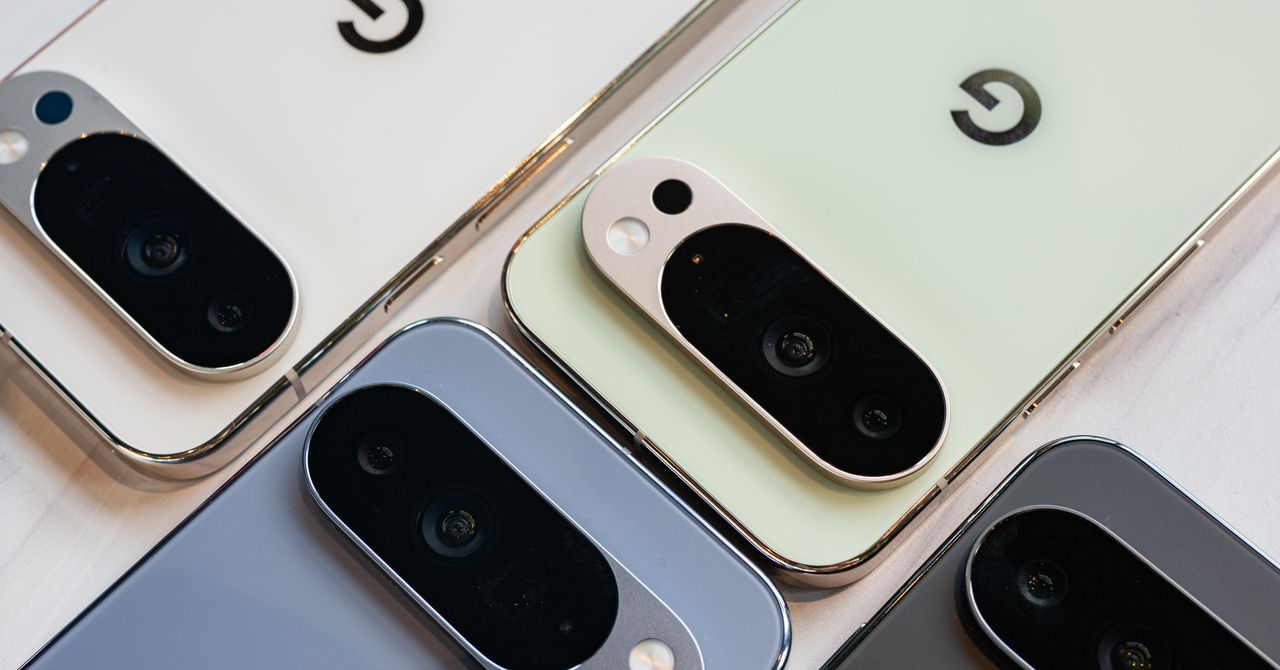
Luckily, you can now check the temperatures of both items and body temperature whenever you like. All it takes is a device that usually stays in your line of sight: your phone, specifically a Google Pixel Pro. If you own a Pixel 8 Pro, Pixel 9 Pro, Pixel 9 Pro XL, Pixel 10 Pro, or Pixel 10 Pro XL, you may have observed an additional sensor located on the camera bar at the back. This is the temperature sensor, which works in conjunction with a pre-installed Google app aptly named Thermometer.
The Thermometer app on the Pixel can be quite useful for casual applications or when you’re pressed for time. While it won’t substitute traditional thermometers for medical purposes (including one from QuickCare), it remains a handy tool to have. We’ll guide you on how to take temperature measurements using your Pixel phone and how to troubleshoot the app should you encounter any difficulties.
How to utilize your Google Pixel’s temperature sensor
The Pixel’s Thermometer app is quite user-friendly and straightforward, so you should find it easy to grasp. Here’s how to begin measuring temperatures with your Pixel phone:
1. Open the Thermometer app.
2. When prompted, hit Allow to grant the app permission to access the built-in infrared temperature sensor and camera.
3. Select “While using the app” to enable access for photos and recordings.
To capture the temperature of an object:
1. Navigate to Object temperature.
2. Press Continue.
3. Complete the tutorial.
4. To activate the thermometer, select one of the materials under Routine measurements, or tap the plus icon at the bottom.
5. Position the temperature sensor (typically below the flash) approximately two inches above the item you’re measuring, or until you notice a Tap to capture message in the center of the screen. Ensure the object does not touch the sensor.
6. Tap the central circle to obtain the temperature reading.
To assess human body temperature:
1. Select Body temperature.
2. On the “Connect Thermometer to other apps” screen, press Not now.
3. Choose Continue to proceed.
4. Adjust the Measurement settings, or hit Next to keep the default settings.
5. Go through the brief tutorial.
6. Tap the Age range in the upper-right corner.
7. Select the correct age group of the person being measured.
8. Ensure the individual’s forehead and temple aren’t wet or obstructed by hair or head accessories.
9. Hold the Pixel’s camera bar close to the center of the forehead until you feel a vibration.
10. Tap the Tap to measure button.
11. Move the phone from the forehead to the temple within four seconds.
Once you receive the temperature reading, you can choose to save, retake, or even delete it (for object temperature only). Just select the action you desire from the options available at the bottom of the screen.
How to troubleshoot the Google Pixel’s Thermometer app
When using the Thermometer app to check object temperatures, you might encounter two error messages. The first is “Temperature sensor unavailable.” Google suggests reaching out to customer support, but some users managed to resolve this error by restarting the Android phone in safe mode and updating the app. A “Not available” message indicates the measurement is either too low or too high for the supported range of the Google Pixel — between -5°F (-20°C) and 392°F (200°C). This error may also appear if the material doesn’t emit heat effectively (low emissivity), making it difficult for the sensor to read.
When measuring body temperature with your Google Pixel, watch out for these six errors:
– Forehead temperature out of range: The reading falls outside the supported range, which often occurs when transitioning from a hot or cold environment to room temperature. Before retrying, rest at room temperature for at least ten minutes.
– Sensor out of range: The Pixel’s temperature sensor is obstructed or too far away. Remove your phone case and any items on the person’s head. Then, hold your phone closer to the forehead.
– Unable to start measurement: The sensor may not be positioned correctly. Ensure the camera bar is aimed at the middle of the forehead.
– Measurement failed: The app cannot accurately measure the temperature. Clean the sensor and the person’s forehead and temple. Follow the proper procedure for taking body temperature.
– Temperature sensor is too warm/cold: The sensor is outside its operational temperature range. Unplug it from the charger if you’re using one, and allow your phone to sit at room temperature for at least ten minutes.
– Temperature sensor unavailable: The