
top-rated Android device simply because the existing one has low sound quality, it’s beneficial to tweak a few settings beforehand.
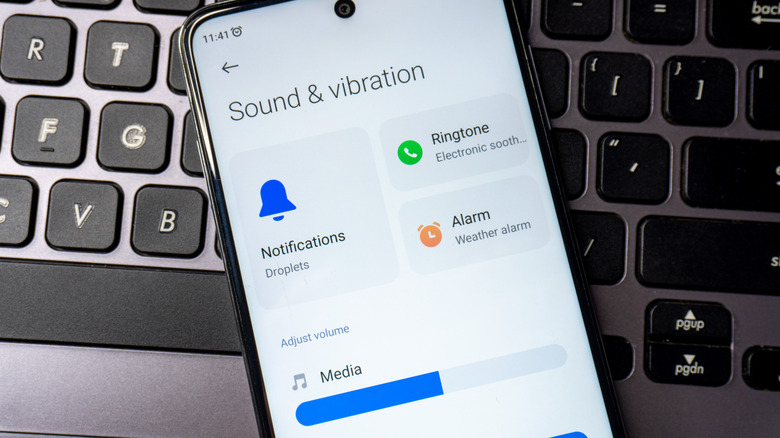
Five Little-Known Features to Improve Audio Quality and Boost Volume on Your Android Device

2 Min Read
Choose a high-resolution audio codec
If you are using headphones, earbuds, or speakers — essentially anything that depends on a Bluetooth connection – manually picking a high-quality audio codec could enhance the audio experience. This is due to the fact that although recent Bluetooth audio devices are compatible with high-resolution audio codecs, your phone may be set to utilize the default one. Standard codecs such as SBC and AAC are generally viewed as more dependable. However, for improved sound quality, selecting LDAC will provide a superior bitrate. To adjust the Bluetooth audio codec, first connect the headphones or speakers and check if Developer Options are accessible. If they are, proceed to the next step.
If Developer Options are not showing, head to the phone’s Settings, select About phone, and tap the Build Number seven times. After doing this, go back to Settings, go to Developer Options, select the Bluetooth Audio Codec entry, and choose LDAC from the options available. You can also activate the LDAC codec through the Bluetooth settings for the headphones. You may also experiment with the other codecs listed here and choose the