
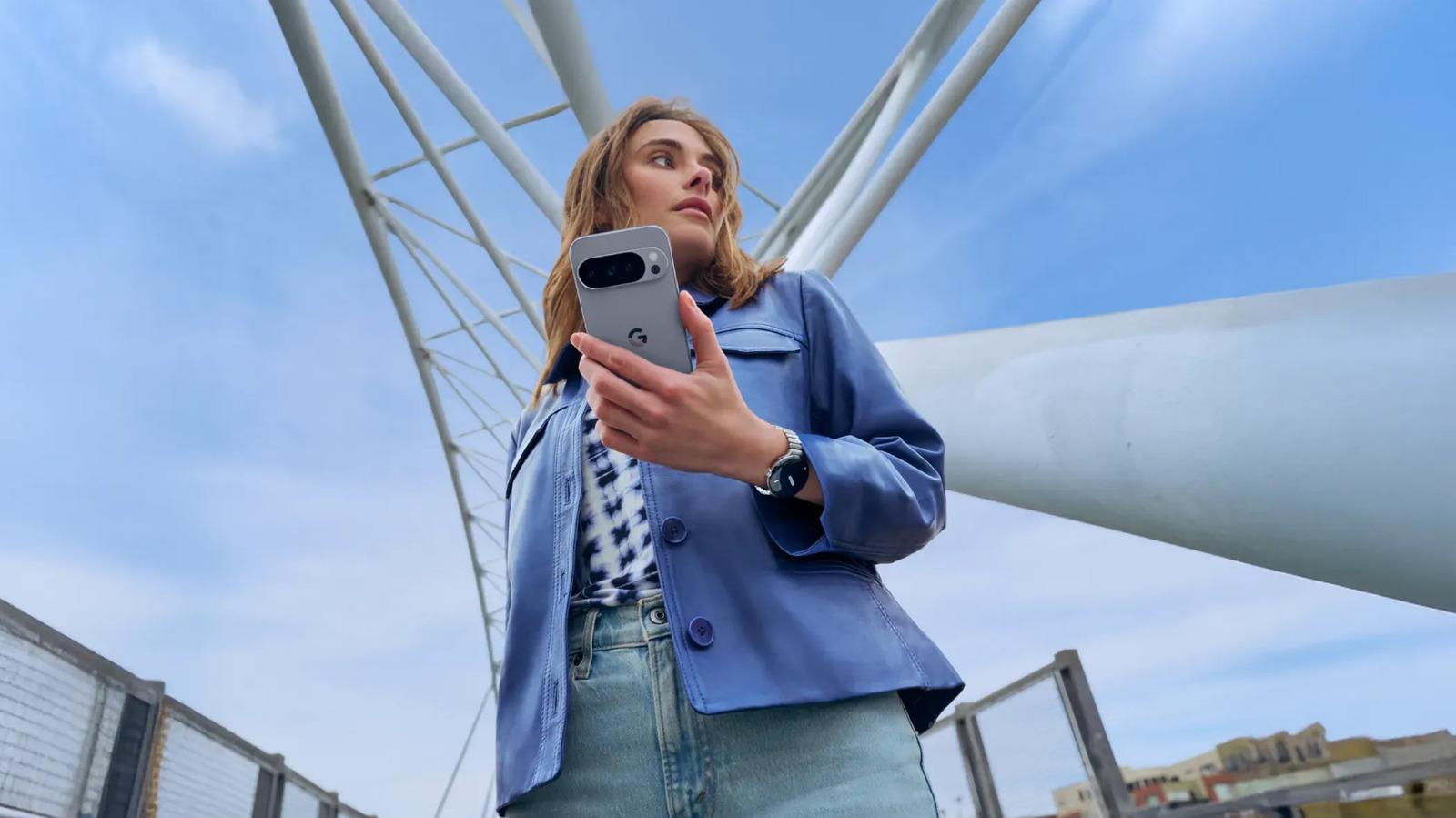
Google Pixel 10 Pro XL. We will guide you on how to activate and utilize it.

Google Pixel 10 Pro XL. We will guide you on how to activate and utilize it.
Activating the back-tap gesture on your Pixel phone is quite simple. Here’s the process:
If you select “Open app,” press the gear icon to choose your preferred application. Some apps provide multiple actions, which you can explore by tapping the gear icon next to the app. For example, Camera allows you to choose between launching the app, recording a video, or snapping a selfie.
Once you’ve set up Quick Tap, try double-tapping the back of your phone, ideally in the center area. It should automatically execute the action you configured. If you wish to prevent accidental triggering of Quick Tap—such as when you’re simply holding your device or it’s stored in your pocket or bag—you can enable “Require stronger taps” from the Quick Tap menu.