
Crucial iPad Settings to Modify Right After Unboxing

Crucial iPad Settings to Modify Right After Unboxing

2 Min Read

nifty iPad accessories enhance the tablet’s capabilities even more. While some users convert it into a device for music creation and podcast recording, others utilize it as a smart home hub to manage their smart devices.

The potential of an iPad is virtually limitless, particularly as the latest models operate on the same chip as the MacBooks. However, before getting too ahead of yourself, it’s crucial to ensure that your iPad is properly configured and prepared for the project you envision. It may be fully operational out of the box, yet there are numerous adjustments you can make to elevate your user experience further. Modifying the functionality of iPad staples such as Control Center, Home Screen, and Apple Pencil can help you maximize your device’s potential. Here are five settings to contemplate altering on your iPad.

Personalize Control Center

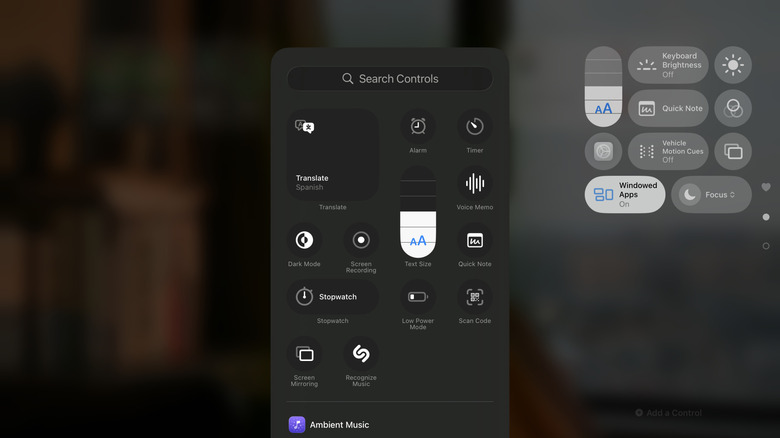
Similar to the iPhone, you can personalize the appearance of your iPad’s Control Center. To achieve this, swipe down from the upper right, long-press anywhere, then select Add a Control. You’ll discover a variety of controls here, but three essential ones include Keyboard Brightness, Multitasking, and Quick Note. Keyboard Brightness is useful for adjusting the backlight brightness of a connected compatible keyboard. Multitasking allows you to toggle between Windowed Apps, Stage Manager, and Full Screen Apps. Lastly, Quick Note is available for when you wish to create a quick note without using gestures — perhaps you lack an Apple Pencil and the current windowing system doesn’t support finger gestures (like on Windowed Apps).

Here are additional controls you may find beneficial:

  • Screen Mirroring – Mirrors your display to a compatible device such as a smart TV, ideal for utilizing your iPad for presentations and sharing photos collectively.
  • Text Size – Modifies the text size across the system, particularly since the iPad’s expansive screen can make certain text difficult to read.
  • Vehicle Motion Cues –

You might also like