
household devices disrupt your Wi-Fi since they function within the same frequency range. This includes microwaves, smart home gadgets, and baby monitors. Therefore, if this disruption begins after the initial scan, your router won’t automatically change channels, resulting in reduced internet speeds.
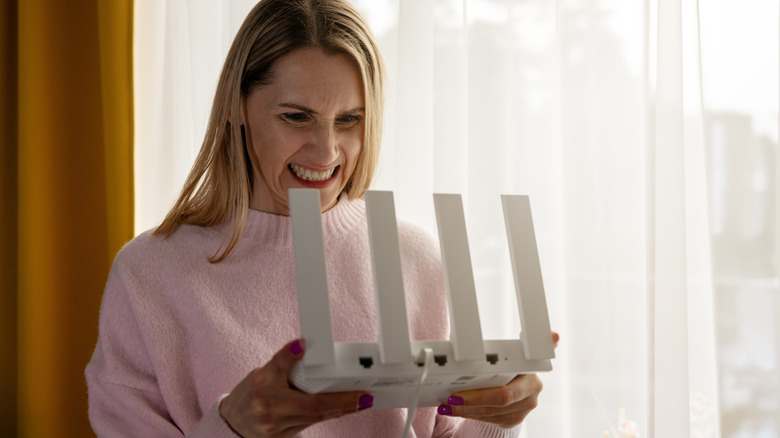
How to Resolve the Router Configuration That Could Be Hindering Your Internet Velocity

1 Min Read
Choosing channels manually can resolve the issue
By manually selecting the channel in the router’s admin interface, you can significantly reduce interference from other networks and household devices and remove channel overlap. For the 2.4 GHz band, you need to select 1, 6, or 11, as these are the only channels that do not overlap. If your router supports the 5 GHz band, you’ll have 30 channels available, of which 24 are non-overlapping. Ideally, you should pick 36, 40, 44, or 48, although other selections such as 149, 153, 157, 161, or 165 should also be effective.
The procedures for manually adjusting channels differ based on the router brand. However, in most instances,