
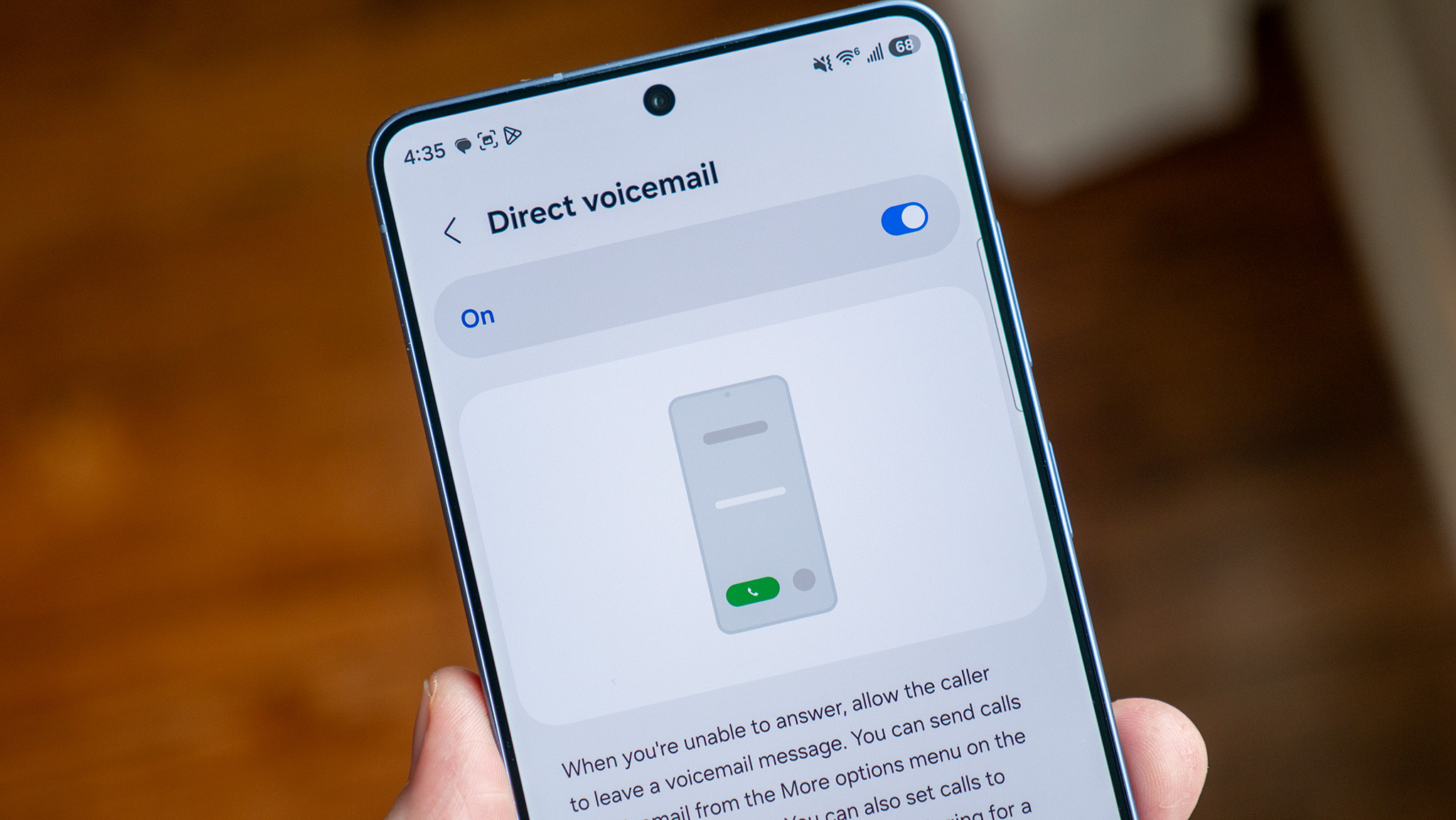

Carriers impose charges of up to $5 for visual voicemail per line, yet Samsung’s Direct Voicemail feature is provided at no cost and is integrated into select Galaxy devices.
I recall a period when my mobile carrier not only billed me for every call minute but also found ways to charge me for each text message I sent! Fortunately, those times have passed, but carriers still attempt to extract additional payments for minor features on a monthly basis.
Visual Voicemail serves as a prime example, generally costing between $3 and $5 for every line each month to access what appears to be a common functionality. If you’re on a family plan, this service could be an expense of $30-40 monthly, but if you own Samsung Galaxy phones, you may save that expense and allow your device to manage the task instead.
This advantage is attributed to a fresh feature included in One UI 8.5, which debuted with the Galaxy S26 series and is being released to Samsung devices globally this May. If you’re utilizing a Galaxy S26, you’re already set to benefit from Direct Voicemail right away. Users of older Samsung models will simply need to await the One UI 8.5 update for the feature to become accessible.
What is Direct Voicemail?
With Direct Voicemail, your device always responds to incoming calls, employing Galaxy AI to handle and transcribe the conversation in real time. Galaxy AI responds with an automated voice that informs the caller of your unavailability, concurrently displaying the transcribed conversation on your screen. You also have the option to pick up the call at any moment during this process, presenting a clear advantage over conventional voicemail.
Since the call and transcription occur directly on your phone, it bypasses your carrier’s voicemail system entirely. Additionally, transcriptions are only saved and processed on your device, ensuring that the call stays within your phone. Samsung further provides AI-enhanced background noise removal with Direct Voicemail, allowing your voicemails to sound clearer than what you may be accustomed to.
What are the drawbacks of Direct Voicemail?
Although Direct Voicemail improves upon your carrier’s visual voicemail service in multiple ways, it comes with more restrictions as it necessitates your phone to answer the call. For instance, if your phone is switched off or lacks network connectivity, the call will still be redirected to your carrier’s voicemail system.
Direct Voicemail isn’t functional while you are engaged in another call, as it must answer first to operate. Additionally, video calls are not supported, and there may be limitations on Direct Voicemail when traveling abroad. You should also consider the available storage on your phone, though transcriptions consume minimal space, making this last concern unlikely for most individuals.
How to activate Samsung Direct Voicemail
Setting up Direct Voicemail is straightforward, but many may not know where to locate the option. You can always search for it in system settings, which is often the best method to find anything you might be unsure about, but here’s a quicker way to access it:
1. Launch the Phone app.
2. Tap the three-dot menu in the upper right corner, then select Settings.
3. Choose Direct Voicemail from the provided list.
4. Flip the toggle switch to activate it.
Once the feature is activated, you’ll want to double-check that all settings are configured correctly to maximize its use. By default, automatic transcription is turned off, so while Direct Voicemail will still function, it won’t provide a real-time transcript as the individual speaks. For me, that’s a crucial element of the feature, rendering it much less beneficial without it. Here’s how to turn it on:
1. Open the Phone app.
2. Tap the three-dot menu in the upper right corner, then select Settings.
3. Choose Direct Voicemail from the list.
4. Scroll down and tap Transcript Assist.
5. Under the Call Recordings section on the following screen, enable Auto transcribe recorded calls and Direct Voicemail.
How to utilize Direct Voicemail
By default, Direct Voicemail will automatically divert calls to voicemail after ringing for 20 seconds. You can modify this duration as per your preference in the Direct Voicemail settings (accessed using the previous steps), or you can manually divert a call to Direct Voicemail anytime. Here’s how to do this.
1. When a call arrives, tap the More options button on the dialer or on the pop-up call notification.
2. Choose Direct Voicemail from the menu to send the call to voicemail.
3. While the caller speaks, a live transcript will appear on your screen.
4. To pick up the call and interrupt Direct Voicemail, press the Answer button.
How to locate your Direct Voicemails
When someone leaves a Direct Voicemail, you can usually just tap the notification to access it.