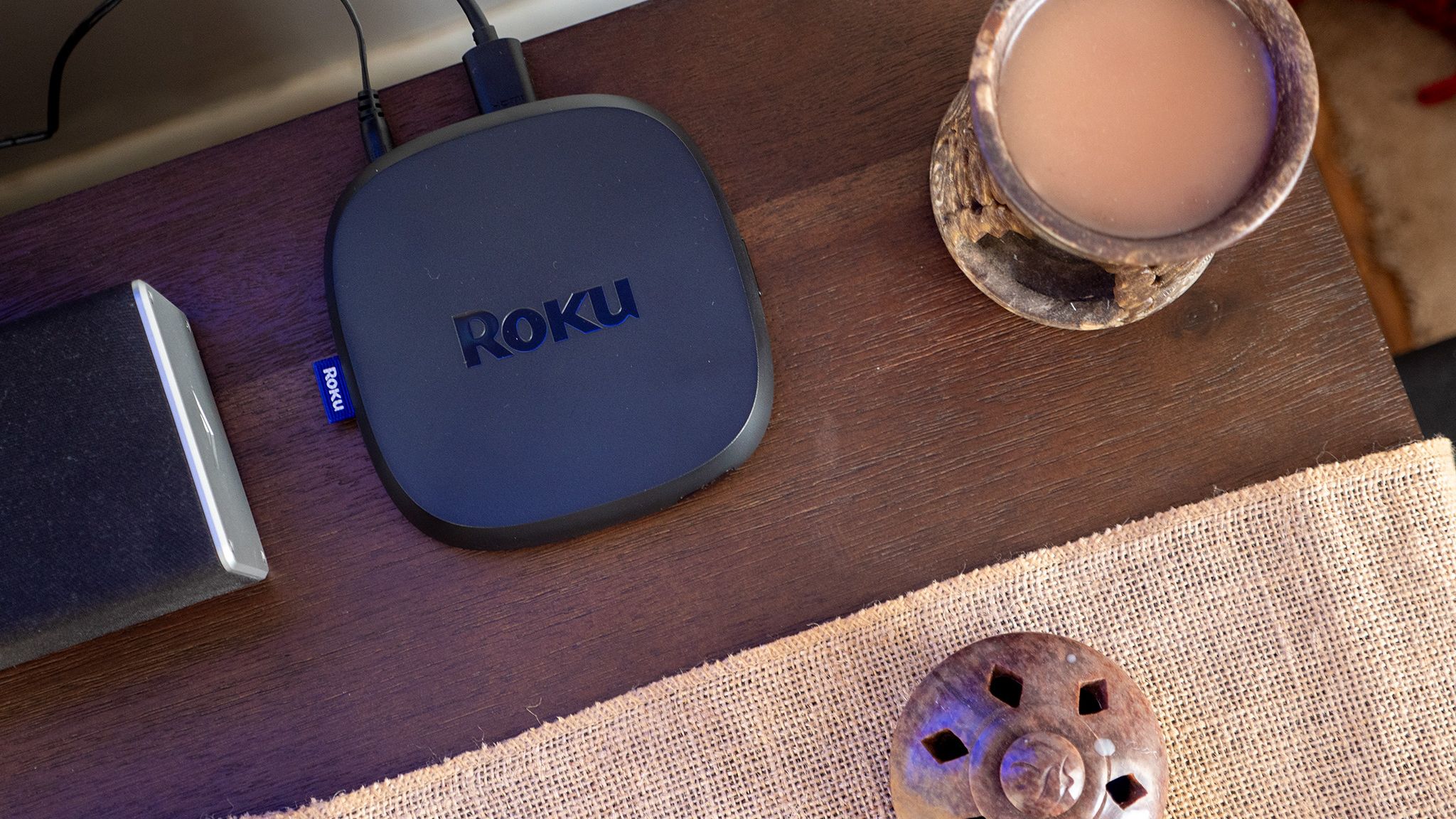
Amazon Basics 256GB should function adequately. Just load it with films you’ve extracted from your physical library or obtained from other sources, then connect it to your Roku TV. This is among the top methods to enhance your device via the TV’s USB port. Moreover, it’s straightforward and won’t break the bank. We’ll guide you through the precise steps to view movies offline on your Roku TV using your affordable USB drive.
To watch movies offline on your Roku TV using your USB stick, you only require one hidden feature of Roku: the Roku Media Player. This built-in app allows you to play media files such as movies, music, and images from an external drive like your thumb drive. It may not be pre-installed on every Roku device, so ensure you download it from the Roku Streaming Store beforehand. After that, follow the steps listed below to utilize the Roku Media Player for viewing movies from your USB drive:
While enjoying your movie, use the Roku remote to manage playback as you typically would. Keep in mind that only video files in MP4, MKV, MOV, and WEBM formats are recognized. Other formats won’t show up in the list.
You can add subtitles when watching an MKV video file, as it is the only format that supports them. Just ensure your USB stick contains a folder with both the MKV and the subtitle file in SRT or VTT format. The subtitle file must share the same name as the MKV. To enable subtitles on your Roku, press the Star button on your remote during video playback. If moving through the menus is too sluggish, you can adjust your Roku TV settings to increase speed.
<div class="slide-key image-holder gallery
