

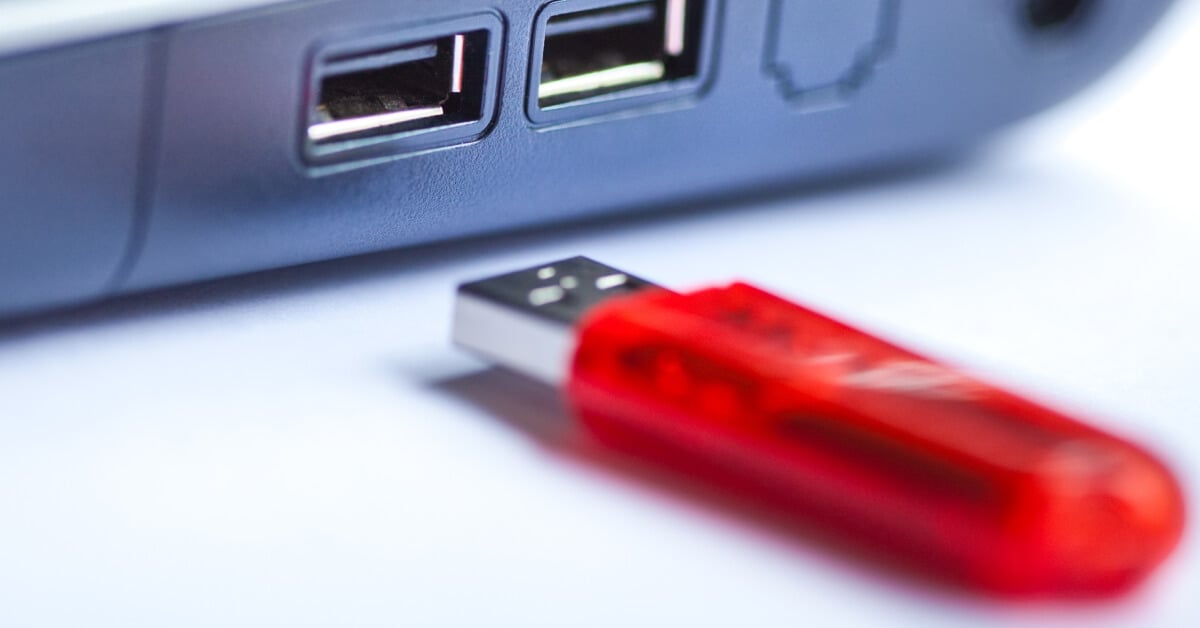
the USB ports you connect to are equally significant. This is the reason the same drive can yield varying outcomes on different machines. On one computer, you might experience quicker file transfers and significantly fewer disconnections, whereas on another, the identical flash drive could exhibit slower file transfer rates and encounter connectivity problems. In most situations, the drive isn’t at fault; it’s the way the system handles the USB ports.
Contemporary PCs are equipped with various settings related to USB ports that many users remain unaware of. Some settings emphasize performance, others enhance transfer speeds, while a few optimize power conservation. The most convenient aspect is that you don’t require specialized tools or access to the system BIOS to implement these adjustments, as the majority of them are accessible in Windows. By combining these adjustments with certain hardware techniques, you will quickly observe improved performance, increased connectivity, and greater reliability from the same USB drive.