
Runrun2/Shutterstock
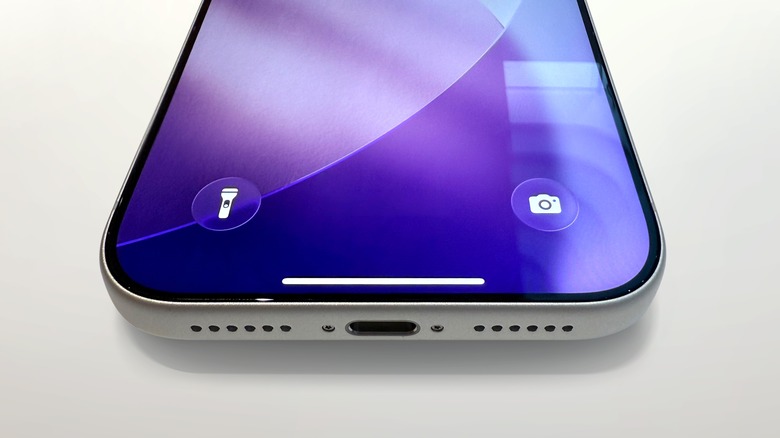
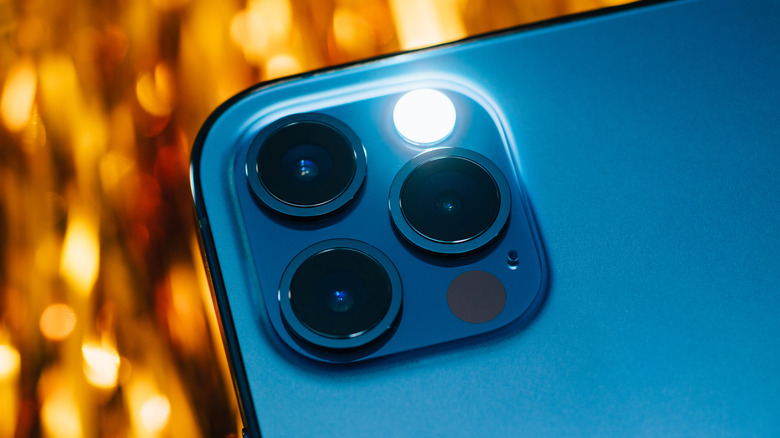
While only iPhone Pro users can adjust its brightness, the flashlight feature on iPhones is incredibly useful. You can configure it for easy access through various methods, such as on the lock screen or in the control center. Simply tap the icon when you require assistance to insert your key in the door at night or to locate objects beneath furniture, and the camera flash will shine with a constant light. If you’re juggling shopping bags or your hands are otherwise busy, you can activate the flashlight using a straightforward voice command.
Just say to Siri, “Hey Siri, turn on/off the flashlight,” and the virtual assistant will switch the light on or off as you requested. There’s no special setup needed to control the flashlight with Siri; as long as you’ve enabled the voice assistant on your iPhone, you just need to speak the command. Turning on your iPhone’s flashlight with Siri is particularly advantageous for lighting up a workspace while your hands are occupied. This technique also enables you to keep photos, messages, documents, or videos visible on your screen while illuminating the flashlight.
Voice shortcuts and customization of the lock screen
Runrun2/Shutterstock