

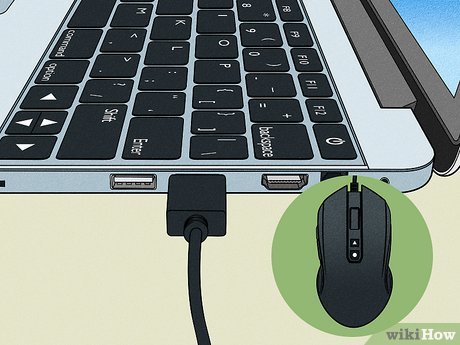
If you’ve ever experienced lag, stuttering, or freezing with your computer mouse, you might have attributed it to the operating system or device driver. However, it often turns out that the culprit is the USB port you are using to connect the mouse. Modern desktop and laptop PCs come equipped with multiple USB-A and USB-C ports for connecting peripherals and devices, with the mouse typically using the former. It’s essential to note that the issue is not with the port type itself, but rather with the USB standard.
Mice and similar peripherals like keyboards don’t necessitate the high data transfer rates provided by USB 3.0 and are generally better suited for the older USB 2.0 standard. Plugging your mouse into a USB 3.0 port doesn’t yield any practical advantages and may even result in issues that could hinder the device’s smooth operation. Nonetheless, for some users, USB 3.0 might present benefits over USB 2.0 when connecting a mouse. Ultimately, it all boils down to the specific configuration and use case.
### What is the ideal USB port for your mouse
On the whole, the USB 2.0 port on your computer typically offers the best performance, whether you’re using a wired or wireless mouse. A standard mouse or keyboard is a low-bandwidth input device with minor speed requirements, which USB 2.0 handles efficiently. Anything beyond that will not improve the mouse’s responsiveness or usability. But how can you determine the appropriate port for your mouse?
If you examine the USB ports closely, they will either feature different colors like blue, green, and black, or specific labels. This indicates the port standard or speed. For example, black corresponds to USB 2.0, whereas blue and green pertain to USB 3.0. On laptops that lack color coding, faster ports typically display a Thunderbolt or lightning symbol nearby. Therefore, once you locate the correct port type, connect the mouse cable or adapter (for a wireless mouse) to it and check for any noticeable enhancements.
In addition to performance, another advantage of designating the USB 2.0 port for the mouse is that it frees up your system’s USB 3.0 ports for other devices that can take advantage of increased data transfer speeds, like a flash drive or external SSD.
### USB 3.0 can cause connectivity problems and induce stutter
Numerous users report that USB 3.0 can occasionally influence connectivity, stability, and performance, particularly when utilizing a wireless mouse. It may even cause input lag, which adversely affects the gaming experience. These are significant drawbacks of linking your mouse to a USB 3.0 port, although it’s not a universal issue.
At times, the positioning of the port plays a more crucial role. If the USB 3.0 port is nearer to the wireless mouse than the USB 2.0 port, the former may be the better choice. For instance, if one is positioned at the back of the CPU and the other at the front, you should connect the adapter to the front port regardless of its standard. Proximity to the source is also vital. The greater the distance between the adapter and the mouse, the more lag and stutter will occur.
Astute users always weigh these considerations: the port standard, type of mouse, and proximity to the port, and then select the one that best suits their setup. Therefore, if your mouse is behaving erratically, switching ports should take no more than a minute, and it could significantly enhance your experience.