

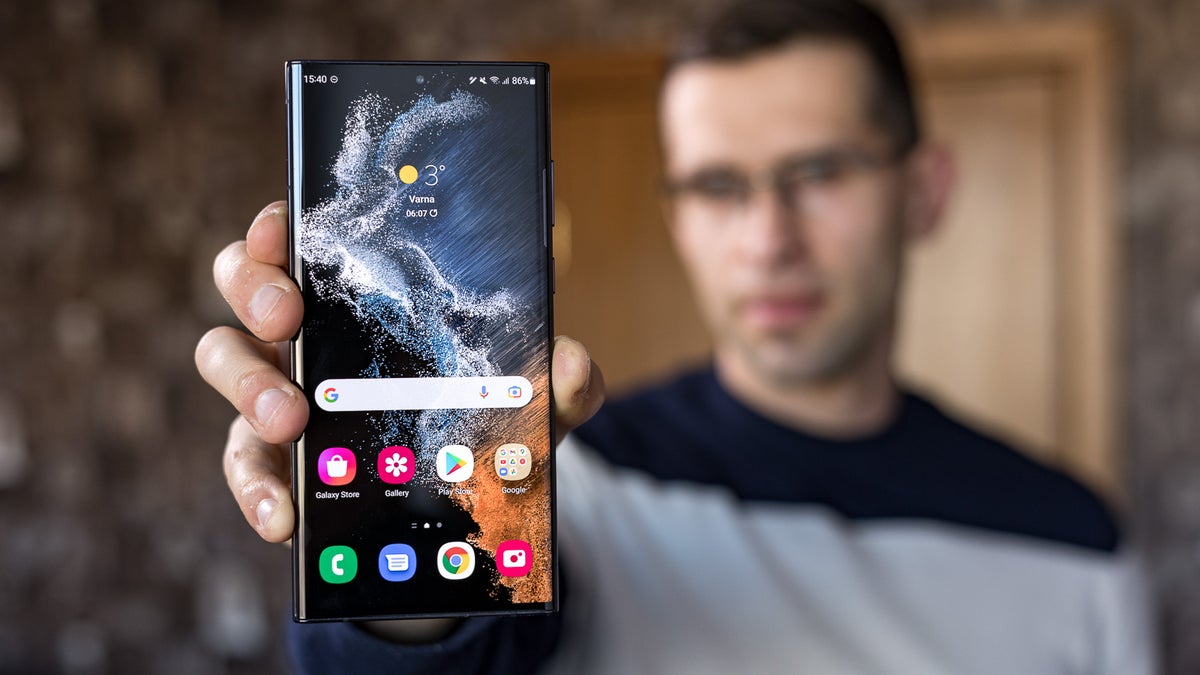
The year 2025 proved to be remarkably lively for Galaxy users. Within just six months, Samsung rolled out two significant updates to its One UI platform. One UI 7 debuted in early April, while One UI 8 followed in mid-September. These consecutive updates brought a wealth of new features to explore. Among the standout additions were call captions, reminder templates, and a lock screen clock that changes shape according to the background. The Now Bar, the Galaxy S25’s counterpart to the Dynamic Island found on iPhones, is yet another prominent feature that provides quick access to your active applications.
If you find these features impressive, just wait—Samsung is only beginning. For those who participated in the One UI Beta Program, Samsung recently introduced a new array of features to your Galaxy device through the latest One UI 8.5 update. This update is presently in beta testing, meaning it isn’t officially available to the public yet. However, you can sign up for the program whenever you wish. After enrollment, here are five new Galaxy features you’ll want to explore.
**Record only a portion of your screen**
Whenever you’re screen recording a tutorial on your Galaxy device, you typically have to crop out the status and navigation bars later. This keeps your privacy intact and provides a cleaner recording. You might also want to crop a screen recording if your focus is on a specific section—perhaps a GIF a friend sent or an error message from a website.
With One UI 8.5, you can skip the hassle of file editing. Your Galaxy phone now allows partial screen recording, enabling you to select which parts to record manually. Using partial screen recording on One UI 8.5 is as straightforward as the previous screen recorder. Here’s the process:
1. Navigate to your Quick Settings.
2. Add the Screen Recorder control if it’s not already visible.
3. Tap Screen Recorder.
4. In the panel that appears, select Partial screen.
5. You can also set your preferred audio recording option—media, media and microphone, or none—and decide whether to include taps and touches.
6. Click Start recording.
7. Adjust the rectangle as necessary. A magnifier will appear in the upper-left for precise corner adjustments.
8. Grab the white circular handle in the center-top of the rectangle to reposition it.
9. Press Record.
Continue with the screen recording as normal. If you wish to pause, simply tap the pause icon at the bottom of the rectangle. Once finished, click the stop icon. Your screen recording will be instantly saved in your Gallery.
**Customize your Quick Settings panel**
The Quick Settings panel on your Galaxy device is likely something you access several times daily. While it is already somewhat customizable, One UI 8.5 allows you even greater flexibility in how it appears, enhancing the optimization of your Samsung Galaxy phone. This update lets you resize the tiles, drag them freely on the screen, and add or remove tiles beyond the standard Quick Toggles group.
When resizing tiles, most controls are limited to two options: icon-only and pill-shaped (icon with label). However, there are a few exceptions. For example, the brightness and volume sliders can be elongated and oriented either horizontally or vertically. The music player and Quick Toggles group can also be expanded significantly, covering almost half the panel. To adjust your Quick Settings panel’s appearance, follow these steps:
1. Swipe down from the top of the display to access the Quick Settings panel.
2. Tap the pencil icon at the top.
3. To modify a tile’s size, drag its resize handle located on the right or bottom.
4. To reposition a tile, drag and drop it to your preferred location.
5. To eliminate a tile, click the minus icon in the top-left corner.
6. To add a new tile, select “Add a control” at the bottom, long-press the setting you desire, and drop it on the panel.
7. When satisfied with the arrangement of items, simply hit Done in the upper-right corner and you’re set.
**Edit images with the enhanced Photo Assist menu**
Samsung Galaxy’s Gallery app has incorporated AI photo editing capabilities for some time. However, these features became much more user-friendly with One UI 8.5. This update has launched a more streamlined design and an accessible history feature to maximize your editing experience.
To access the new Photo Assist on your Galaxy phone, open an image you wish to edit in the Gallery app and tap the sparkle icon at the bottom. This action will take you to the Photo Assist screen featuring options at the bottom. You