
Three Configurations to Speed Up Your Lagging iPad

Three Configurations to Speed Up Your Lagging iPad

2 Min Read

restart your iPad. This often resolves most temporary glitches and lags by clearing temporary files. However, if the slowdown results from a more severe software issue, upgrading your iPad to the latest iOS version is advisable, as newer versions are designed to fix performance problems and bugs.

If neither of these quick solutions helps, there are some settings you can adjust on your iPad instead. We’ll guide you through the three primary ones that should yield immediate results.

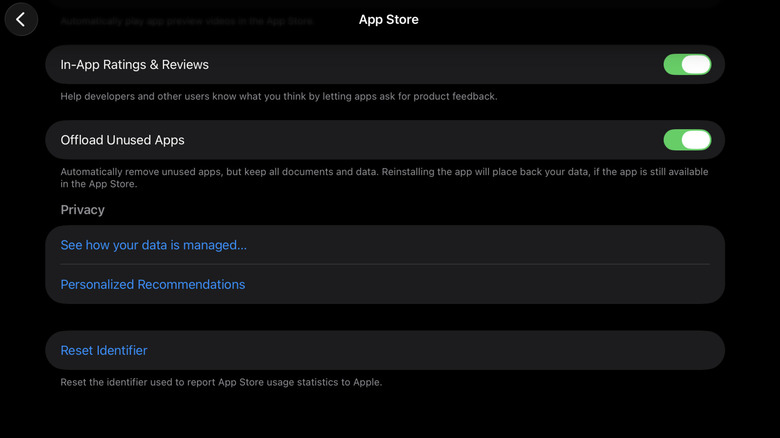
Activate Offload Unused Apps

One of the reasons your iPad may be slowing down is due to full storage. Apple advises maintaining at least 1GB of free space for optimal device performance. If your storage is completely filled, don’t be alarmed — there are simple tricks to clear up space on your iPad. One of the most effective ways to achieve this is by enabling Offload Unused Apps.

Offloading apps implies removing apps you rarely use when storage is low. It acts like a light uninstall; instead of permanently deleting everything, the data and files remain stored locally, allowing you to restore them later if needed. To activate this iPad setting, follow these steps:

  1. Open the Settings app.
  2. Choose Apps at the bottom of the screen.
  3. Access the App Store.
  4. Scroll down to Offload Unused Apps.
  5. Enable it.

At this point, Offload Unused Apps will function automatically in the background as soon as your available space becomes critically low. If you prefer not to wait until that moment,

You might also like