
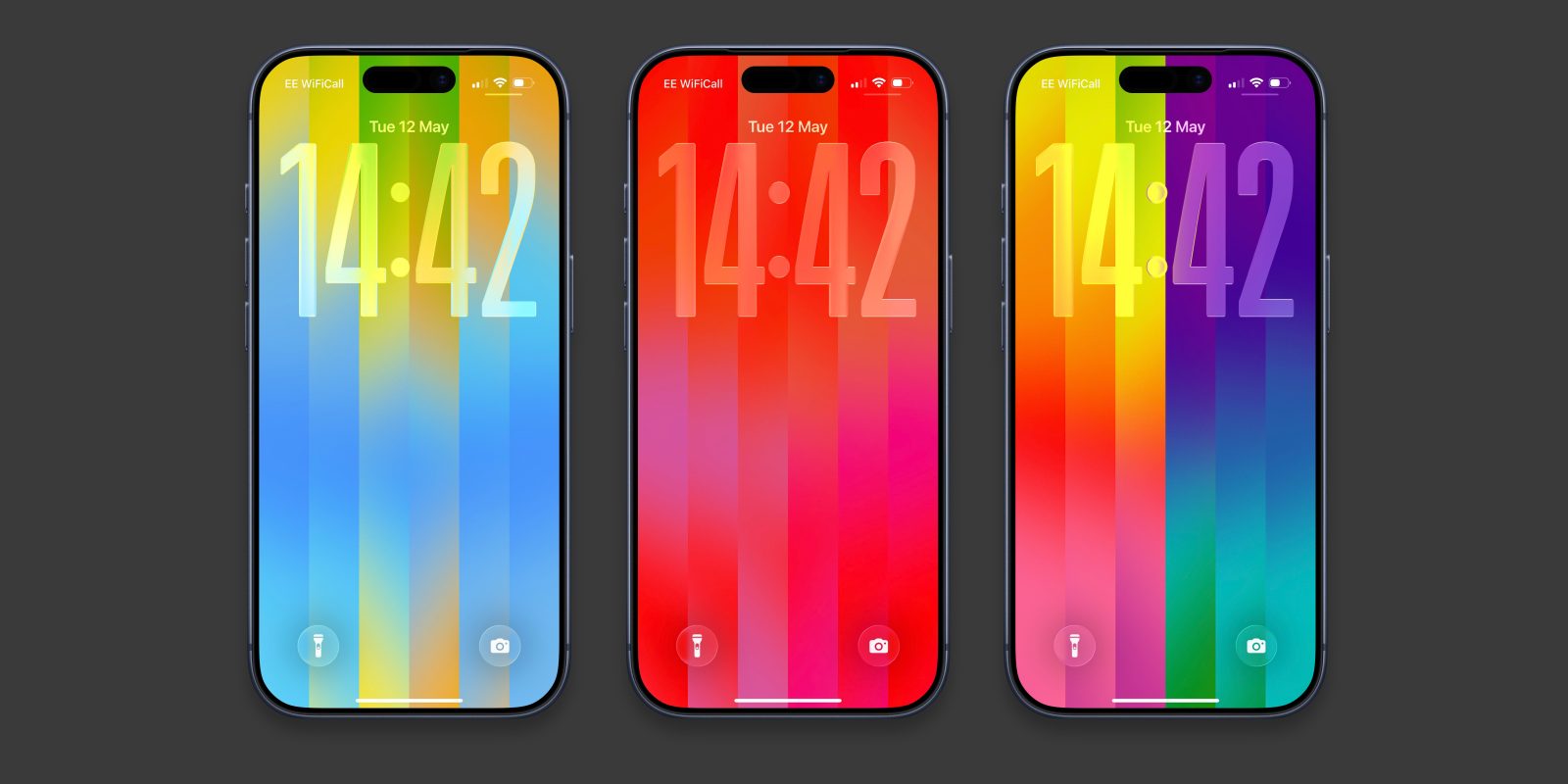

# Personalizing Your iPhone with the Latest Pride Luminance Wallpaper in iOS 26.5
With the launch of iOS 26.5, Apple has unveiled an exciting new addition: the Pride Luminance wallpaper. This dynamic wallpaper not only honors the LGBTQ+ community but also provides a customizable experience for users. Here’s how to set up and personalize this vibrant wallpaper on your iPhone.
## Setting Up the Pride Luminance Wallpaper
To begin, make sure your iPhone has been upgraded to iOS 26.5. This free software upgrade is accessible for all compatible iPhone models. If you haven’t done so already, go to **Settings > Software Update** to download and install the most recent version.
Once your device is up to date, follow these instructions to find the new Pride wallpaper:
1. **Long-press your lock screen** to bring up the Wallpapers gallery.
2. Tap the **plus button** to add a new wallpaper.
3. Scroll down to the **Pride section**. If the wallpaper is not yet downloaded, tap the **‘Get’ button** to install it.
## Personalizing Your Wallpaper
The Pride Luminance wallpaper features vibrant strips that change as you move from the lock screen to the home screen. To customize it:
1. Tap on the Pride Luminance wallpaper to launch the editor.
2. Swipe left to right to preview the preset built-in styles—there are around ten options available.
3. For a unique touch, swipe to the end and choose the **‘Custom’ option**. Tap the pencil icon to open the color picker.
You can select up to **12 colors** in any combination, allowing for extensive creativity. Whether you like earthy tones, bold hues, or gentle shades, the customization choices are extensive.
## Extra Customization Features
In addition to color selection, you can also adjust widgets and the time display appearance. The default setting uses the large glassy font style of iOS 26. If you’d like to modify it, just tap on the time panel to choose a different font or color.
When you’re happy with your design, hit the **Add button** in the top-right corner to save your new wallpaper. You can create multiple lock screens with varied appearances and switch between them as you prefer.
## Coordinating Watch Face for Your Apple Watch
Alongside the iPhone wallpaper, a corresponding colorful watch face is available for your Apple Watch. To access this feature, update your watch to watchOS 26.5, and then navigate to the **Watch Face Gallery** to find the Pride Luminance face.
Adjusting the Apple Watch face is straightforward:
1. Long-press the clock face and select **Edit**.
2. Swipe to the **Color page** and use the Digital Crown to cycle through theme presets.
3. The **Custom preset** lets you choose up to 12 colors, echoing the customization options of the iPhone wallpaper.
## Final Thoughts
The new Pride Luminance wallpaper in iOS 26.5 not only enhances your iPhone’s appearance but also encourages personal expression through its customizable features. With the ability to create a corresponding watch face, Apple continues to embrace diversity and individuality in its design. Enjoy making your devices uniquely yours with this vibrant and significant addition!