
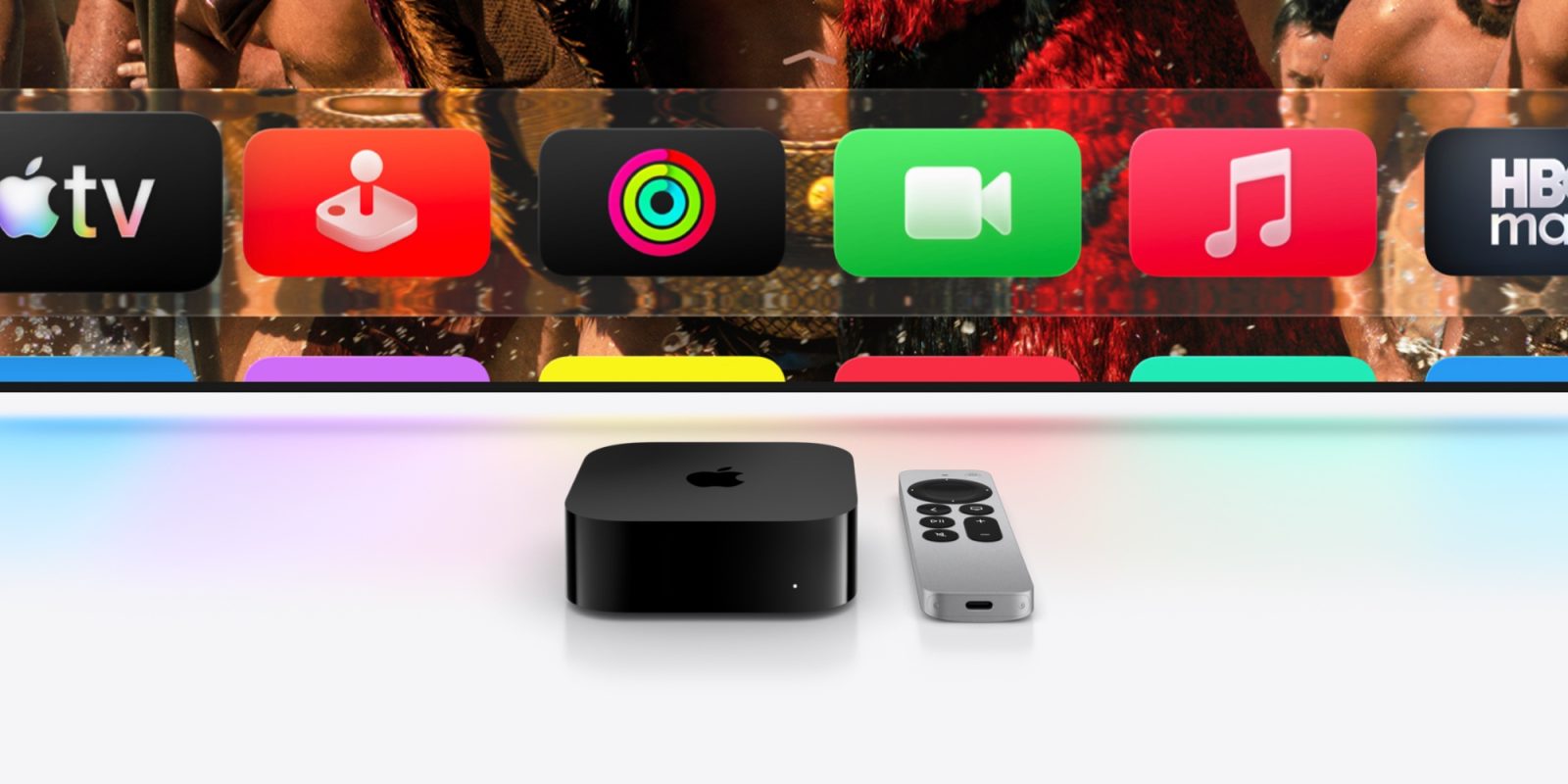

# New Customization Capabilities in tvOS 26 for Apple TV
As excitement grows for the arrival of a new Apple TV 4K, Apple is set on improving the user experience with tvOS 26, rolling out five novel settings that enable enhanced customization of your Apple TV. Here’s a glimpse into these fascinating features.
## 1. Turn Off Individual Aerial Screen Savers
The aerial screen savers on Apple TV are a cherished feature, and tvOS 26 gives users more control over them than ever before. By accessing the Screen Saver menu within the Settings app and selecting Aerials, users can now opt to individually enable or disable any aerial screen saver provided by Apple. This means you can preserve your favorite underwater visuals while avoiding the ones you don’t prefer.
## 2. Subtitle Customization Options
Previously tucked away in Accessibility settings, the capability to modify subtitle styles has become significantly more intuitive in tvOS 26.4. Users can now adjust subtitle styles right from the video player by clicking the subtitle icon. Choices include Classic, Large Text, Outline Text, and Transparent Background. For those desiring even greater personalization, further controls are available in the Settings app.
## 3. Startup Profiles, Optional
tvOS 26 has refined the Profiles feature, simplifying the creation and management of profiles. Users can now determine whether the Profiles screen shows up at startup. This proves especially beneficial for those who wish to skip the Profiles screen if they do not frequently utilize the feature.
## 4. Continuous Audio Connectivity
For sound enthusiasts, tvOS 26.4 reveals a fresh option called ‘Continuous Audio Connection.’ This feature enables Apple TV to leverage a Dolby MAT connection for uninterrupted transitions across different audio formats. It works exceptionally well with Sonos speakers but is advantageous for a variety of audio systems. Users can activate this feature by heading to Settings > Video and Audio > Audio Format > HDMI Output.
## 5. Set AirPlay Speaker as Default Audio Output
In a noteworthy update, tvOS 26 now permits any AirPlay-compatible speaker to be designated as the default audio output for Apple TV. This encompasses third-party speakers such as Sonos and Bose, streamlining the experience for users to enjoy their audio without the hassle of repeated manual reconnections via Control Center.
These latest settings in tvOS 26 amplify the Apple TV experience, granting users greater authority over their viewing and listening choices. Which features have you discovered to be the most beneficial?