

encouraging users to move away from Chrome. The vertical tabs feature works seamlessly with tab grouping, merging tabs relating to a common topic or task into a single collection that can be minimized when those tabs are not needed.
 Google
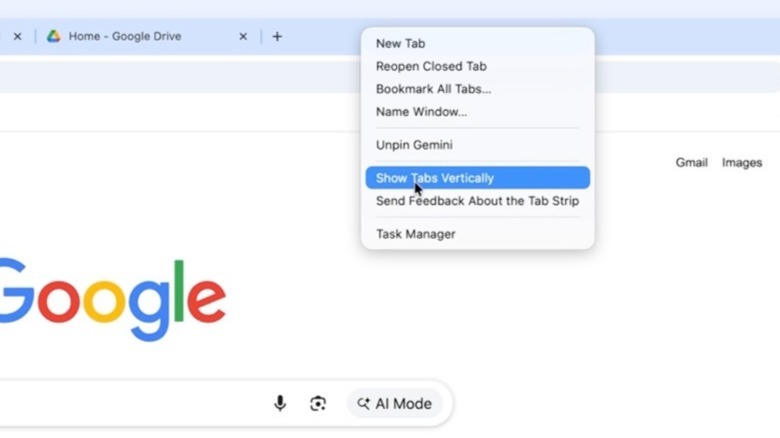
To activate vertical tabs in Google Chrome, simply right-click on the Chrome window or tab section and find the “Show Tabs Vertically” option. If this feature is not accessible in your area, you will need to wait for the Chrome 147 update to arrive for your device, as the rollout is happening gradually across macOS, Windows, and Linux. A button at the top of the new Chrome interface will also allow you to minimize the vertical tab panel that will appear on the left side of the browser window when you require additional screen space for the website you might be visiting.
The latest update also introduces a new full-screen Reading Mode experience for Chrome, enabling users to eliminate visual distractions from a web page, such as images and videos, converting it into a text-only format that can facilitate better content consumption that may demand more focus. Reading Mode was previously an available feature in Google Chrome, but it operated within the side panel.