
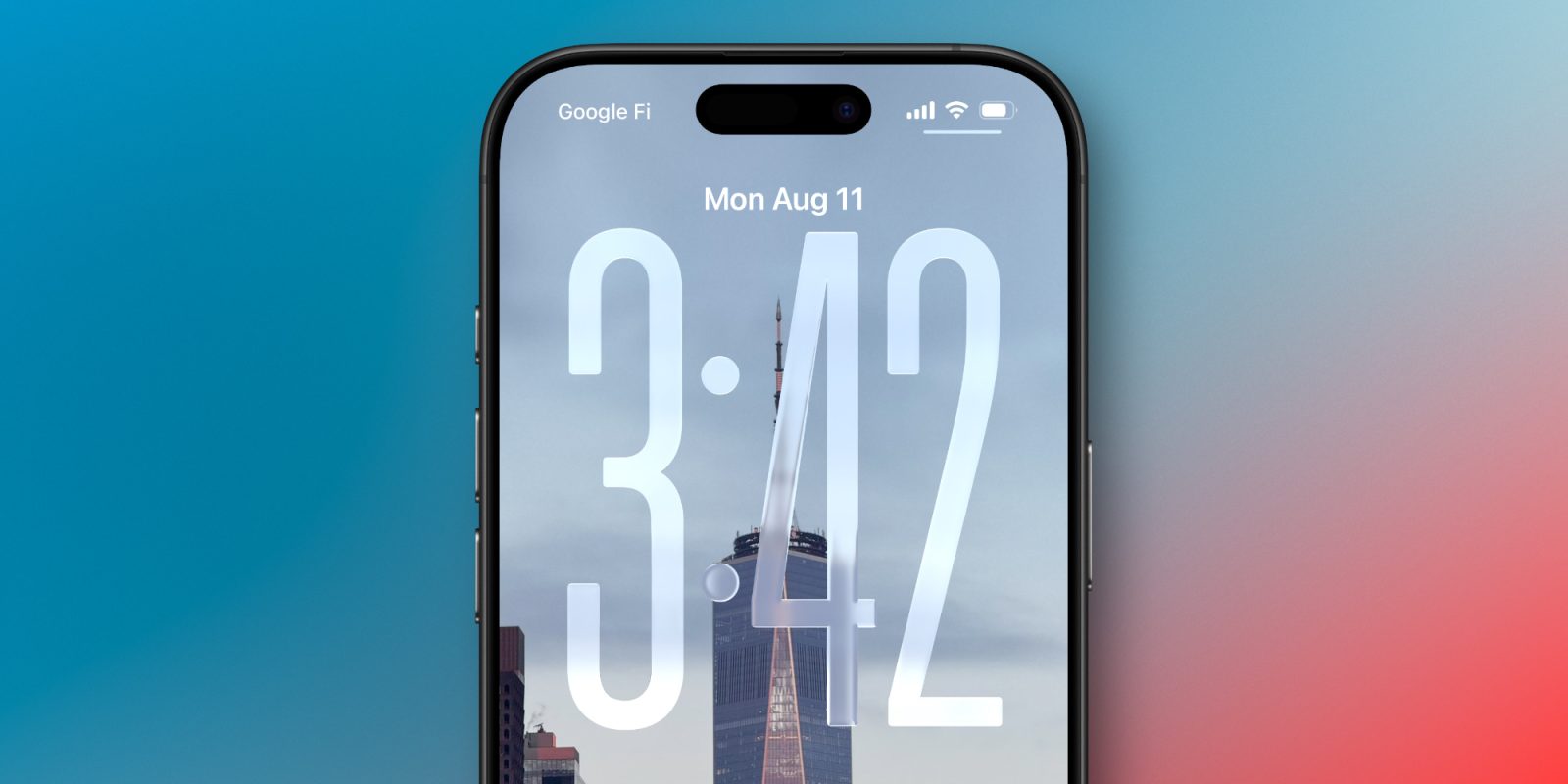

# Apple’s Always On Display: Updates in iOS 26
Apple’s Always On Display (AOD) feature, which debuted with the iPhone 14 Pro, has seen a subtle yet notable modification with the arrival of iOS 26. This article examines the adjustments made to the Always On Display functionality and how users can tailor their experience.
## Always On Display Modes
Originally, the Always On Display feature permitted users to view a dimmed iteration of their Lock Screen wallpaper while their iPhone was secured. This offered quick access to vital information such as the time, date, notifications, and widgets. However, with the iOS 26 update, Apple has altered the default operation of the AOD feature.
Rather than simply dimming the Lock Screen wallpaper, iOS 26 now employs a blur effect on the wallpaper by default. This modification improves the visibility of the clock and widgets, allowing them to be more prominent. Nonetheless, for users who prefer a crisp image as their wallpaper, this adjustment might lessen the aesthetic value of the feature.
Fortunately, Apple has added a toggle option that enables users to return to the original behavior. This allows users to disable the blurred wallpaper effect and showcase their Lock Screen in full clarity, just as it was before the update.
## Customization Options
While customization options for the Always On Display feature have always been somewhat restricted, they continue to be practical. Users can decide whether to showcase their wallpaper and can also select whether notifications are displayed. This adaptability allows for a streamlined, utility-focused display or one that maintains the character of the user’s selected wallpaper and Lock Screen setup.
The screen will automatically shut off completely in certain scenarios, such as when the device is face down, covered, in CarPlay, utilizing Continuity Camera, in Low Power Mode, during Sleep Focus, or at bedtime.
## The Impact of iOS 26 Changes
The primary update in iOS 26 is the default blurring of wallpapers when the display dims. While this effect may enhance readability, it fundamentally changes the look of the Lock Screen. Some users may favor a clear display of their selected wallpaper over a blurred alternative.
To modify this setting, users can go to Settings > Display & Brightness > Always On Display and turn off the blurred wallpaper option. This empowers users to personalize their Always On Display experience according to their preferences.
## Conclusion
The modifications to Apple’s Always On Display feature in iOS 26 strike a balance between functionality and aesthetics. While the blurred wallpaper effect may improve visibility, it might not be to everyone’s taste. The addition of a toggle to revert to the original display style offers users the flexibility to select what best meets their needs. Ultimately, whether one likes the blurred effect for privacy or the sharpness of their wallpaper is a matter of individual choice.